
You're uploading your latest 4K shoot, and your cloud storage bill just jumped again. Most creators focus on gear, editing software, and distribution costs, but storage costs up 70% when you're storing large, uncompressed video files. The good news is that video compression can slash those bills dramatically, and modern codecs do it without touching the visual quality your audience expects. This guide walks you through the real numbers, the math behind the savings, and exactly how to put compression to work in your workflow.
Table of Contents
- The real cost of storing high-resolution video
- Why video compression works: The math behind the savings
- Yearly savings: What creators gain by compressing early
- Does video compression reduce quality? Debunking the biggest fear
- Smart compression tactics: Optimize storage, save more
- Put your video compression savings into action
- Frequently asked questions
Key Takeaways
| Point | Details |
|---|---|
| Cut storage costs | Video compression can shrink bills by up to 70% without extra work or major investment. |
| Protect video quality | Modern codecs allow you to compress videos with no visible loss for most uses. |
| Save time and bandwidth | Compressed videos upload and transfer faster, easing collaboration for creators. |
| Tactics for every workflow | Simple steps like compressing early and using the right tools maximize your cost savings. |
The real cost of storing high-resolution video
Every time you upload a raw 4K clip, you're not just storing footage. You're paying for every gigabyte, every month, across every platform where that file lives. A single hour of uncompressed 4K footage can run between 50 GB and 300 GB depending on the codec and bitrate. Multiply that across a full production month and the numbers get uncomfortable fast.
Here's a quick look at what typical cloud storage costs per GB per month in 2026:
| Storage platform | Approx. cost per GB/month | Notes |
|---|---|---|
| Google Drive | ~$0.020 | Shared with Gmail and Photos |
| Dropbox | ~$0.025 | Business plans vary |
| Amazon S3 | ~$0.023 | Pay-as-you-go |
| iCloud | ~$0.030 | Consumer-focused pricing |
Those fractions of a cent add up fast when you're storing terabytes. A creator storing 2 TB of raw footage on Dropbox pays roughly $50 per month, or $600 per year, just for that one archive. Add backups, client delivery folders, and project files, and you're looking at a serious line item.
Three factors drive your storage bill higher than you might expect:
- Resolution: 4K files are roughly four times larger than 1080p files at the same frame rate and codec.
- File format: Uncompressed formats like ProRes or RAW are massive compared to delivery formats.
- Length and volume: A busy creator shooting 10 to 20 hours of footage per month accumulates storage debt quickly.
As video storage costs explained in detail, storing uncompressed 4K footage can cost hundreds more per year than compressed video. Understanding your cloud storage costs is the first step toward fixing them.
Why video compression works: The math behind the savings
Compression works by removing redundant data your eyes can't detect. Between frames in a video, most pixels don't change. A codec like HEVC (H.265) identifies those static areas and stores them efficiently instead of repeating the same data thousands of times.
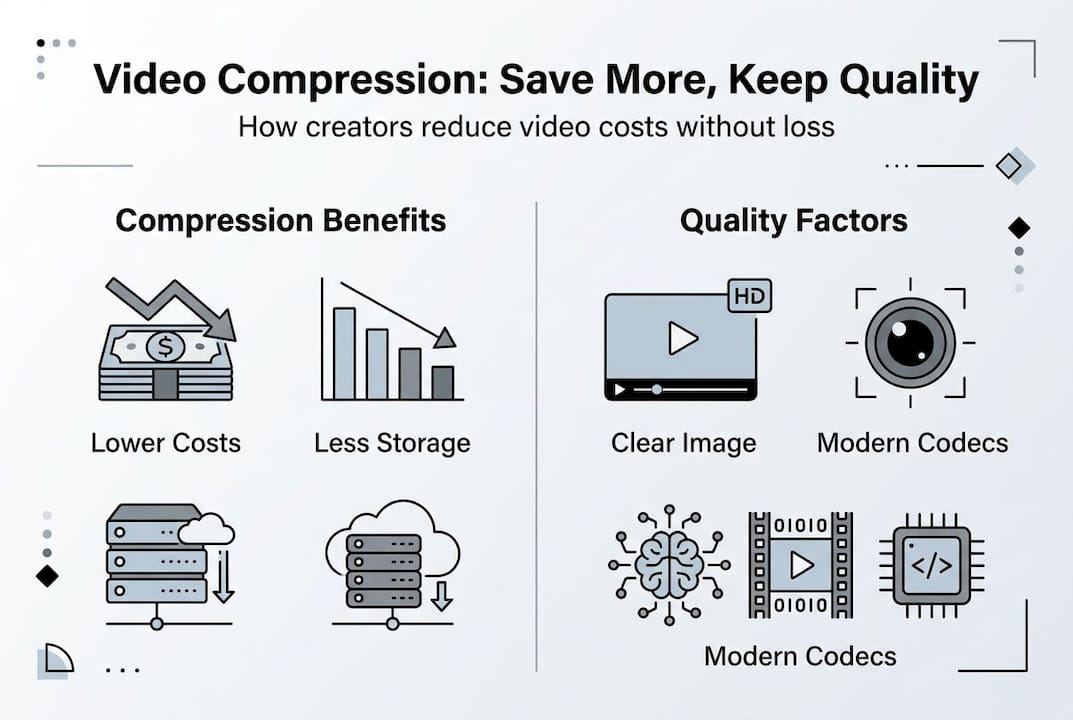
Here's a simple before-and-after comparison for 1 hour of 4K footage:
| Format | File size | Monthly cost at $0.023/GB | Annual cost |
|---|---|---|---|
| Uncompressed ProRes | ~220 GB | ~$5.06 | ~$60.72 |
| H.264 compressed | ~60 GB | ~$1.38 | ~$16.56 |
| HEVC (H.265) compressed | ~30 GB | ~$0.69 | ~$8.28 |
That's one hour of footage. Scale that to a creator producing 40 hours of content per month and the annual difference between ProRes and HEVC becomes thousands of dollars. Compression reduces file sizes by up to 70% without visible quality loss for most use cases.
Here's how the compression process works in practice:
- Ingest your raw footage from your camera or phone.
- Choose your target codec. HEVC is the gold standard for balancing quality and size.
- Set your compression level. A constant rate factor (CRF) between 18 and 28 covers most creator needs.
- Run the compression before uploading to any cloud platform.
- Compare the output visually before deleting the original.
Pro Tip: Before committing to a compression setting, export a 30-second test clip at your chosen CRF value and watch it on the same screen your audience uses. If you can't spot a difference, you've found your sweet spot. Check out these cost-saving storage tips for more guidance on settings that protect quality.
Yearly savings: What creators gain by compressing early
The biggest mistake creators make is compressing only at the delivery stage. If you compress at intake, before the file ever touches your cloud storage, every backup, every duplicate, and every archive benefits from the smaller size.

Here's a realistic scenario for a busy videographer shooting 30 hours of 4K footage per month:
| Scenario | Monthly storage (GB) | Monthly cost | Annual cost |
|---|---|---|---|
| No compression (ProRes) | 6,600 GB | ~$151.80 | ~$1,821.60 |
| HEVC compression applied | 1,980 GB | ~$45.54 | ~$546.48 |
| Annual savings | ~$1,275 |
"Applying compression from the start can mean the difference between one terabyte and three needed for an annual archive." This is the kind of cost-saving storage strategy that separates creators who scale from those who hit a wall.
Beyond the direct dollar savings, compression delivers a stack of hidden benefits that most creators overlook:
- Faster uploads: Smaller files move to the cloud in a fraction of the time, which matters when you're on a deadline.
- Reduced bandwidth costs: If you're on a metered connection or paying for business internet, smaller files mean lower data usage.
- Easier client collaboration: Sending a 5 GB file instead of a 20 GB file means clients can actually download and review it without frustration.
- Longer drive life: Writing and reading smaller files puts less wear on your local SSDs and hard drives.
Learning how to cut video costs early in your workflow is one of the highest-return habits you can build. A solid cost-effective storage workflow compounds those savings month after month.
Does video compression reduce quality? Debunking the biggest fear
This is the question every creator asks before committing to compression. The short answer is: not if you do it right. The longer answer involves understanding what compression actually removes.
Modern codecs like HEVC don't randomly discard pixels. They use perceptual models based on how human vision works, removing data in areas where your eyes are least sensitive, such as fine texture in backgrounds or subtle color gradients in shadows. The result is a file that looks identical to the original on any standard display. Advanced codecs like HEVC maintain stellar quality at greatly reduced sizes.
Pro Tip: Use a free tool like FFmpeg to run a VMAF (Video Multi-Method Assessment Fusion) score on your compressed output. A score above 93 is considered broadcast quality. Most HEVC encodes at moderate settings score well above that threshold.
Here are the use cases where you can compress confidently:
- Social media delivery: YouTube, Instagram, and TikTok re-encode your footage anyway, so uploading a compressed file loses nothing.
- Client review copies: Compressed proxies are perfect for approval rounds before you deliver the final master.
- Long-term archiving: HEVC archives take up far less space and remain fully watchable years later.
- Backup copies: Your second and third backups don't need to be raw files.
When should you hold off on compression? Keep your original raw files if you anticipate heavy color grading, significant cropping, or visual effects work. For everything else, advanced video compression is safe and smart. These storage tips for creators break down exactly when to compress and when to keep the original.
Smart compression tactics: Optimize storage, save more
Knowing compression works is one thing. Building it into your daily workflow is where the real savings happen. Simple workflow changes can compound into hundreds of dollars in annual storage savings.
Here's how to integrate compression at every stage of your project:
- At intake: As soon as footage comes off the card, run a batch compression pass before copying to your working drive. This keeps your project folder lean from day one.
- During editing: Work with proxy files (low-resolution stand-ins) during the edit, then relink to compressed masters for export.
- Before cloud upload: Always compress before pushing to any cloud platform. Never upload raw ProRes or RAW files to paid cloud storage unless you have a specific reason.
- For backups: Your offsite backup drive should hold compressed versions. Reserve raw files for your primary local drive only.
- For client delivery: Deliver compressed H.264 or HEVC files unless the client specifically requests otherwise.
A few tools and settings worth knowing:
- HandBrake: Free, powerful, and handles batch compression with HEVC presets built in.
- FFmpeg: Command-line tool for creators who want precise control over every encode parameter.
- HEVCut: Purpose-built for creators who want compression without the technical setup.
For team projects, establish a shared compression standard so everyone on the project delivers files at the same spec. This prevents one team member's 80 GB raw dump from inflating the shared drive. Explore these video storage workflow tips and learn why you should avoid large video files in collaborative environments.
Put your video compression savings into action
You now have the numbers, the workflow, and the confidence to compress without fear. The next step is seeing exactly how much you stand to save based on your own footage volume.

The video size calculator at HEVCut lets you plug in your current file sizes and see your projected savings before you change a single setting. No guesswork, no technical knowledge required. And when you're ready to start compressing, HEVCut's solutions handle the entire process automatically, whether you're working with a single clip or a full season of content. The platform is built specifically for creators who want real savings without spending hours learning encoder settings. Start your free trial and put those savings to work this month.
Frequently asked questions
How much money can video compression realistically save in a year?
Video compression can cut costs by 70% for most creators, which translates to hundreds or even thousands of dollars saved annually depending on how much footage you produce each month.
Does compressing my videos reduce image quality?
HEVC maintains quality while significantly reducing file size, and most viewers will not notice any difference when you use recommended compression settings.
What's the easiest way to start compressing my videos?
Workflow tools automate compression so you don't need to configure encoders manually. A platform like HEVCut handles batch processing with a few clicks.
Are there hidden benefits to using video compression?
Compressed files upload faster and reduce bandwidth needs significantly, and they also make it easier to share projects with clients and collaborators without hitting file size limits.