
A single 4K video consumes four times the storage of 1080p footage, creating a hidden drain on your budget and workflow speed. Content creators and small businesses face mounting cloud fees, slow uploads, and productivity delays simply because their video files are unnecessarily large. This guide explains why large files hurt your bottom line and reveals practical strategies to compress, optimize, and manage videos efficiently without sacrificing quality.
Table of Contents
- Understanding what drives large video file sizes
- Operational challenges of managing large video files
- Debunking common misconceptions about video compression and quality
- Comparing storage solutions and compression approaches
- Strategies for efficient video storage and management
- Summary: balancing quality, cost, and efficiency in video management
- Optimize your video storage with HEVCut tools
- Frequently asked questions
Key takeaways
| Point | Details |
|---|---|
| Storage costs scale with file size | Uncompressed 4K videos inflate monthly cloud fees by up to 30%, draining budgets unnecessarily. |
| HEVC compression cuts files by 70% | Modern codecs reduce file size dramatically while preserving visual quality. |
| Large files slow productivity | Upload failures, transfer delays, and bandwidth bottlenecks disrupt content workflows. |
| Smart compression improves efficiency | Choosing the right codec and bitrate settings accelerates editing and sharing by up to 50%. |
| Storage strategy balances cost and access | Combining local and cloud solutions with compression maximizes budget control and scalability. |
Understanding what drives large video file sizes
Video file size depends on several technical factors that directly impact storage costs and transfer speeds. Resolution determines pixel count, with 4K videos consuming four times the storage of 1080p due to pixel count. Each frame in 4K contains over 8 million pixels compared to 2 million in 1080p, exponentially increasing data requirements.
Bitrate controls how much data flows per second of video. Higher bitrates preserve more detail but create larger files. Doubling bitrate doubles file size, making it a linear relationship that demands careful balance. Frame rate also matters, as jumping from 30fps to 60fps doubles the number of frames stored per second, effectively doubling file size even at identical resolution and bitrate settings.
Codec choice dramatically affects efficiency. Older H.264 codecs compress video moderately well, while modern HEVC reduces file sizes by up to 70% without visible quality degradation. Understanding these variables helps you make informed decisions about recording settings and compression strategies. Use a video bitrate calculator to estimate optimal settings, or check your expected output with a video file size calculator before committing storage resources.
Key factors determining video file size:
- Resolution: 4K requires 4x storage compared to 1080p
- Bitrate: Higher values preserve detail but increase file size linearly
- Frame rate: 60fps doubles storage needs versus 30fps at same resolution
- Codec: HEVC cuts sizes up to 70% compared to H.264 without quality loss
Pro Tip: Record in the highest resolution you need for final delivery, not the highest your camera supports. Shooting 4K when your audience views in 1080p wastes storage and processing time.
Operational challenges of managing large video files
Large uncompressed video files create real financial pressure on content creators and small businesses. Large video files increase storage costs by up to 30%, and unstable internet causes upload failures, forcing teams to upgrade cloud plans repeatedly or invest in expensive local storage infrastructure. A 10-minute 4K video at high bitrate can exceed 5GB, quickly filling standard cloud storage tiers that cost $10 to $25 monthly.

Uploading massive files strains bandwidth and patience. Frequent upload interruptions affect 10% of users under peak loads, causing failed transfers that must restart from scratch. A 20GB project file might take hours to upload on typical home internet, blocking other work and delaying collaboration. Transfer platforms often impose file size limits, forcing you to split videos or compress them hastily without quality control.
Workflow delays compound when team members wait hours to download footage for editing. Large files slow preview rendering, timeline scrubbing, and export times in editing software. Clients grow impatient when review links take minutes to buffer. Your storage guide for creators shows how compression accelerates these processes without sacrificing visual fidelity.
Bandwidth intensive sharing affects everyone. Streaming large files requires robust internet infrastructure that many viewers lack, causing buffering and abandoned views. Collaborative editing becomes impractical when files take too long to sync across cloud platforms.
Operational problems caused by oversized video files:
- Escalating cloud storage fees from repetitive tier upgrades
- Failed uploads due to bandwidth instability and file size limits
- Productivity loss from slow downloads, rendering, and preview generation
- Client dissatisfaction from buffering and delayed review access
Debunking common misconceptions about video compression and quality
Many creators believe compression inevitably destroys video quality, leading them to store massive uncompressed files unnecessarily. This misconception wastes storage and money. HEVC codec delivers up to 70% size savings without visible quality drop, proving modern compression preserves perceptual quality even at dramatically reduced file sizes.
The confusion stems from older compression technologies that introduced visible artifacts at high compression ratios. H.264 worked well but struggled at extreme compression. HEVC changed the equation by encoding video more intelligently, removing redundant data humans cannot perceive. Your eyes cannot detect the difference between a 10GB uncompressed 4K clip and a 3GB HEVC version in most viewing scenarios.
Another myth suggests higher resolution always demands proportionally larger files. While 4K contains more pixels than 1080p, smart codec selection and bitrate optimization can store 4K footage in files smaller than poorly compressed 1080p videos. The relationship between resolution and file size is not fixed; compression efficiency matters more than raw pixel count.
Some creators fear compression limits editing flexibility, assuming you need uncompressed source files for color grading or effects. Professional workflows routinely use compressed intermediates without compromising final output quality. The HEVC video compressor maintains sufficient data for post-production while cutting storage requirements dramatically.
Common compression myths debunked:
- Myth: Compression always ruins video quality
- Reality: Modern codecs like HEVC preserve visual fidelity at 70% smaller sizes
- Myth: Higher resolution requires proportionally massive files
- Reality: Codec efficiency matters more than pixel count alone
- Myth: Compressed video cannot be edited professionally
- Reality: Compressed intermediates work perfectly for most post-production tasks
Pro Tip: Test compress a sample video and compare it to the original on your target display device. You will likely struggle to spot differences, confirming compression does not mean quality loss.
Comparing storage solutions and compression approaches
Choosing between local and cloud storage involves tradeoffs between cost, accessibility, and scalability. Cloud storage fees vary from $5 to $25 per month with large files inflating costs; local storage has no recurring fees but less scalability. Cloud platforms offer anywhere access and automatic backups, ideal for teams collaborating remotely. Local drives provide one-time purchase costs and faster transfer speeds but lack redundancy unless you build a backup system.
Codec selection determines how much storage you need regardless of storage type. H.264 remains widely compatible but creates larger files than necessary. HEVC reduces sizes substantially while maintaining quality, making it the best choice for storage optimization. AV1 promises even better compression but lacks broad hardware support in 2026. Your HEVC vs H.264 comparison breaks down compatibility and performance differences.
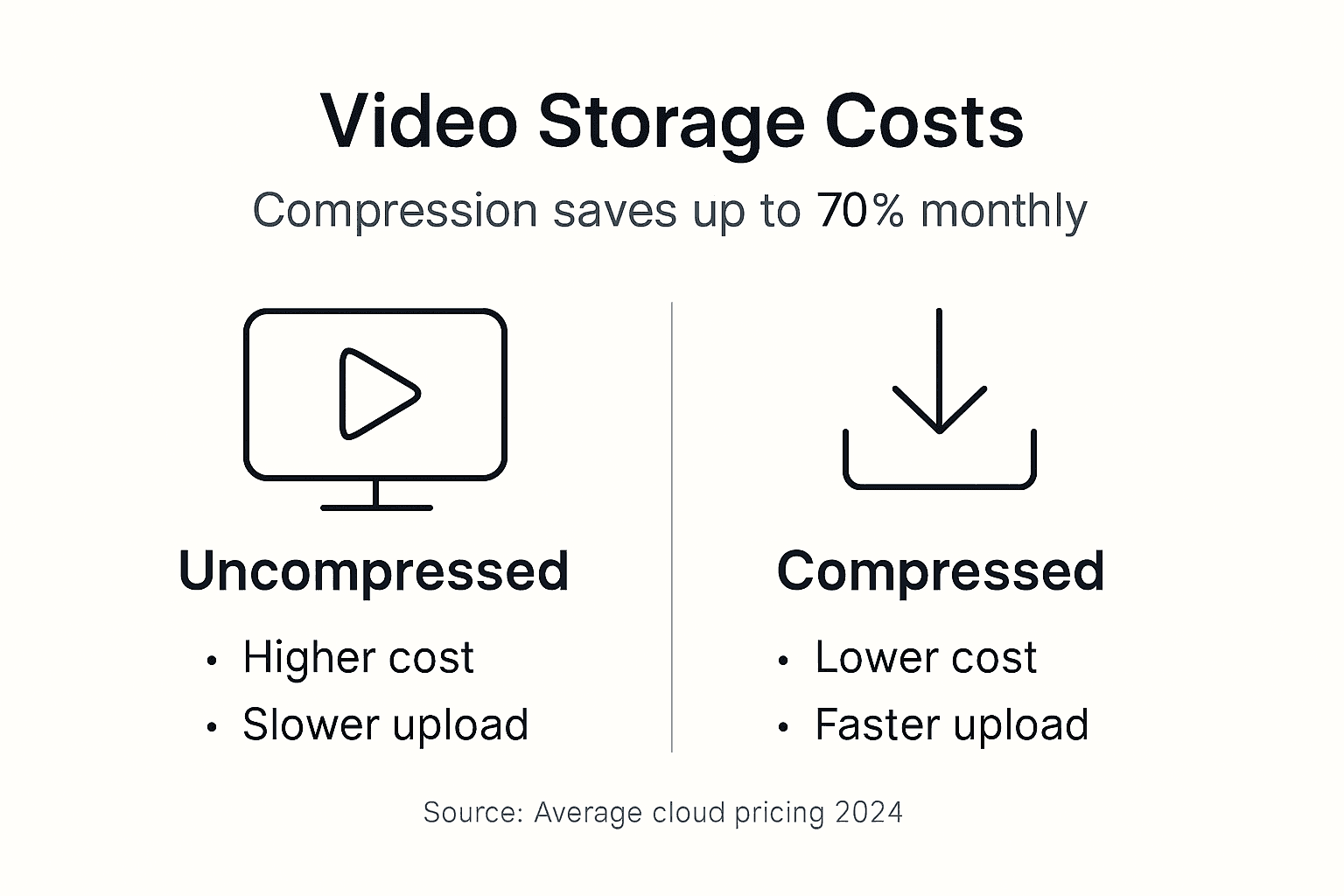
Cost analysis reveals compression saves more money than cheaper storage alone. A creator storing 500GB of 4K footage in uncompressed H.264 pays $10 monthly for cloud storage. Compressing those files to HEVC reduces storage needs to 150GB, dropping costs to $5 monthly or eliminating the need for paid tiers entirely. Over a year, compression saves $60 or more per user.
| Solution | Monthly Cost | Accessibility | Scalability | Best For |
|---|---|---|---|---|
| Cloud Storage | $10-$25 | High (anywhere access) | Excellent (pay as you grow) | Remote teams, frequent collaboration |
| Local Storage | $0 (after purchase) | Medium (device dependent) | Limited (physical capacity) | Solo creators, budget-conscious users |
| HEVC Compression | $0-$15 (tool cost) | N/A (reduces needs) | Excellent (multiplies capacity) | Everyone (cuts costs across solutions) |
| Hybrid Approach | $5-$15 | High | Excellent | Balances cost, access, and redundancy |
Pro Tip: Combine local storage for active projects with cloud backup for completed work. Compress everything with video compression tools to maximize capacity and minimize recurring fees.
Strategies for efficient video storage and management
Implementing a systematic approach to video file management saves money and accelerates workflows. Follow these steps to optimize your storage setup and compression practices for maximum efficiency.
-
Analyze your content needs and typical file sizes. Review the resolution, frame rate, and bitrate settings you use most often. Identify which projects require 4K versus 1080p delivery. This baseline helps you set realistic compression targets without over or under optimizing.
-
Choose HEVC compression for new projects. Configure your recording devices and editing software to output HEVC when possible. If your camera only records H.264, transcode files to HEVC immediately after import using an HEVC video compressor before storing them long term.
-
Adjust bitrate and resolution to match delivery requirements. Uploading to social media rarely requires bitrates above 10Mbps even for 4K content. Exporting at 8Mbps saves substantial storage while meeting platform specifications. Test different settings to find the sweet spot where quality remains excellent but file size drops significantly.
-
Ensure stable upload environments by scheduling large transfers during off-peak hours. Use wired connections instead of WiFi when uploading multi-gigabyte files to avoid interruptions. Compression reduces transfer time, but connection stability still matters.
-
Review storage plans quarterly to avoid paying for unused capacity. Cloud providers make upgrading easy but rarely remind you to downgrade. Compression often reveals you are paying for tiers you no longer need. Your storage savings calculator estimates how much compression reduces your storage requirements.
-
Integrate compression into your workflow automatically. Set up batch processing to compress completed projects overnight. This proactive approach prevents storage emergencies and keeps costs predictable. Editing and transfer times are cut by up to 50% with compression workflows that preserve quality.
Pro Tip: Create presets in your compression tool for common scenarios like social media, client delivery, and archival storage. Presets eliminate guesswork and ensure consistent quality across projects.
Regularly audit your storage usage to identify files that can be compressed further or archived offline. Old project files sitting in expensive cloud tiers waste money. Move completed work to local drives or lower-cost cold storage after compressing to HEVC. Refer to video storage optimization tips for detailed guidance on maintaining an efficient video library.
Summary: balancing quality, cost, and efficiency in video management
Large video files drain budgets through inflated storage costs and slow productivity through transfer delays and rendering bottlenecks. Content creators and small businesses cannot afford to ignore file size optimization when 4K footage consumes four times the storage of 1080p and cloud fees increase by 30% with uncompressed files.
Modern compression tools eliminate the tradeoff between quality and file size. HEVC codec reduces storage requirements by up to 70% without visible quality degradation, proving compression is not a compromise but a smart efficiency gain. Editing and transfer times improve by 50% when workflows incorporate compression, directly boosting team productivity.
Smart storage choices balance monthly costs with accessibility needs. Cloud platforms offer collaboration benefits but recurring fees add up quickly. Local storage provides one-time purchase cost savings but limited scalability. Combining both approaches with aggressive compression maximizes budget control and operational flexibility. Choosing the right codec and bitrate settings matters more than storage type alone.
Implementing these strategies delivers immediate benefits. Smaller files upload faster, reducing failed transfers and bandwidth frustration. Lower storage needs cut monthly cloud bills or extend local drive capacity. Faster editing and preview rendering improve content turnaround times, helping creators publish more consistently and respond to clients quicker. Every creator benefits from applying these practices regardless of project scale or technical expertise.
Optimize your video storage with HEVCut tools
HEVCut makes implementing these optimization strategies simple and accessible. Our video compressor leverages HEVC technology to reduce file sizes by up to 70% without quality loss, directly addressing the storage and workflow challenges outlined throughout this guide. Content creators achieve professional compression results without technical complexity.

Calculate your potential savings before committing to compression. The storage savings calculator estimates how much space and money you will save by switching to HEVC. Planning your next project? Use the video size calculator to predict file sizes at different resolution and bitrate combinations, ensuring you never over-provision storage again. HEVCut supports iPhone and Mac users with intuitive apps that integrate seamlessly into existing workflows, making video optimization effortless.
Frequently asked questions
How does HEVC compression affect video playback compatibility?
HEVC enjoys broad support across modern devices including iPhones, Macs, and most Android phones manufactured after 2018. Older devices and some web browsers may require transcoding to H.264 for playback. Most social media platforms and video hosting services accept HEVC uploads and handle conversion automatically if needed.
What is the best resolution and bitrate balance for social media?
Most social platforms display 1080p as their highest native resolution, making 4K uploads unnecessary unless you want future-proofing. Target 8 to 10Mbps bitrate for 1080p and 15 to 20Mbps for 4K when uploading to YouTube, Instagram, or Facebook. These settings provide excellent quality while keeping file sizes manageable for faster uploads.
Can compressing videos help reduce cloud storage bills significantly?
Yes, compression reduces storage needs by 50% to 70%, often dropping users into lower-cost cloud tiers or eliminating paid plans entirely. A creator storing 300GB of uncompressed footage can compress it to under 100GB with HEVC, saving $10 to $20 monthly on typical cloud storage pricing. Annual savings reach $120 to $240 per user.
Does large video file size affect collaborative editing speed?
Absolutely. Large files take longer to upload to shared drives, sync across team members, and generate proxy files in editing software. Compression accelerates all these processes by reducing the data that must transfer and process. Teams report 50% faster project setup and smoother timeline performance after implementing compression workflows. Check the storage guide for collaborative optimization strategies.
Are there free tools to estimate video file size before storage?
Yes, online calculators provide accurate file size estimates based on resolution, frame rate, duration, and bitrate inputs. These tools help you plan storage capacity and compare different compression settings before recording or exporting. Using a calculator prevents storage surprises and helps optimize export settings for specific file size targets.