
Every minute of uncompressed 4K video consumes roughly 1.5 gigabytes of storage, meaning a single hour can balloon to over 90GB. For content creators and small businesses managing hundreds of hours of footage, storage costs spiral out of control quickly. Video compression offers a solution, slashing file sizes by up to 70% while maintaining visual quality. This guide reveals how advanced compression techniques reduce storage expenses, streamline workflows, and preserve the professional quality your audience expects.
Table of Contents
- Key Takeaways
- Why video compression matters for creators and small businesses
- How video compression works: codecs and trade-offs
- Comparing popular video compression methods and tools
- Maximizing benefits: practical tips for compressing high-res videos efficiently
- Discover HEVCut's video tools for efficient compression and storage
- Frequently asked questions
Key Takeaways
| Point | Details |
|---|---|
| Storage cost savings | Compressing video can reduce file sizes by up to seventy percent while preserving visual quality. |
| Faster workflows | Smaller files upload and download faster, speeding up editing and collaboration. |
| Advanced codecs boost efficiency | Codecs like HEVC offer substantially better compression than older standards, enabling 4K and HDR content at smaller sizes. |
| Quality and balance | Finding the right compression balance avoids artifacts while still reducing file size. |
| Sustainable storage and streaming | Efficient compression supports sustainable digital storage and faster streaming with minimal quality loss. |
Why video compression matters for creators and small businesses
Uncompressed high-resolution footage creates a storage nightmare. A 10-minute 4K clip at 60fps can exceed 15GB, and videography and 4K footage can easily exceed hundreds of gigabytes uncompressed, leading to excessive storage costs. When you're producing content regularly, these numbers multiply rapidly. Cloud storage providers charge monthly fees that scale with usage, turning what seems like a manageable expense into a budget drain.
The financial impact extends beyond direct storage fees. Large files slow down every stage of production. Uploading to cloud services takes hours instead of minutes. Downloading footage for editing consumes bandwidth and time. Backup processes become overnight operations rather than quick tasks. Team collaboration suffers when sharing files requires dedicated transfer tools instead of simple email attachments.
Compression solves these problems by removing redundant data without degrading visible quality. The technology analyzes each frame, identifying patterns and similarities that can be represented more efficiently. Instead of storing every pixel individually, compressed video uses mathematical shortcuts to reconstruct images during playback. This approach dramatically reduces file sizes while your audience sees virtually identical quality.
Consider the math. A content creator producing 100 hours of 4K footage annually faces roughly 9TB of storage needs uncompressed. At typical cloud storage rates of $10 per 100GB monthly, that's $900 per year just for raw storage. Compression reducing files by 70% cuts that cost to $270 annually, saving $630 while improving workflow speed.
Key storage cost factors:
- Raw 4K footage requires 1.5GB per minute of storage
- Cloud providers charge incrementally as usage scales past free tiers
- Transfer speeds slow proportionally with file size
- Backup redundancy multiplies storage requirements by 2-3x
- Uncompressed workflows waste hours in upload and download time
"Storage efficiency isn't just about saving money. It's about maintaining creative momentum. When files transfer in seconds instead of hours, you spend more time creating and less time waiting." – Professional videographer managing 500+ client projects annually
How video compression works: codecs and trade-offs
Video codecs are algorithms that encode and decode digital video. Think of them as specialized languages for describing moving images efficiently. When you compress a video, the codec analyzes the footage and creates a compressed version using its specific rules. During playback, the same codec reverses the process, reconstructing the video for viewing.

Two codecs dominate the landscape: H.264 and HEVC (H.265). H.264 emerged in 2003 and became the internet standard, balancing decent compression with broad device compatibility. HEVC arrived in 2013 with substantially improved efficiency. The HEVC codec can reduce video file size by up to 70% compared to older standards without significant quality loss, making it ideal for 4K and HDR content where file sizes would otherwise be prohibitive.
The compression process involves trade-offs. Higher compression ratios create smaller files but require more processing power during encoding and playback. Aggressive compression can introduce artifacts like blockiness, color banding, or motion blur in fast-moving scenes. Finding the sweet spot means understanding your content and audience needs.
| Feature | H.264 | HEVC (H.265) |
|---|---|---|
| Compression efficiency | Baseline standard | 40-50% better than H.264 |
| File size (1 hour 4K) | ~30GB at high quality | ~15GB at equivalent quality |
| Encoding speed | Fast on most hardware | Slower, requires more processing |
| Device compatibility | Universal support | Growing support, modern devices |
| Best use case | Quick sharing, older devices | 4K/HDR content, long-term storage |
Steps to optimize compression for your content:
- Identify your primary distribution channel and required quality level
- Select a codec matching your audience's device capabilities
- Test compression settings on a representative sample clip
- Compare file size reduction against visible quality loss
- Adjust bitrate and resolution settings based on test results
- Document your optimal settings for consistent future encoding
Pro Tip: Content with minimal motion (talking head videos, tutorials) compresses far more efficiently than action-heavy footage. You can use more aggressive settings for static content and preserve higher bitrates for dynamic scenes without averaging quality across your entire library.
Understanding video compression best practices helps you make informed decisions. The goal isn't maximum compression at any cost. It's finding the point where file size drops significantly while quality remains indistinguishable to your viewers under normal viewing conditions.
Comparing popular video compression methods and tools
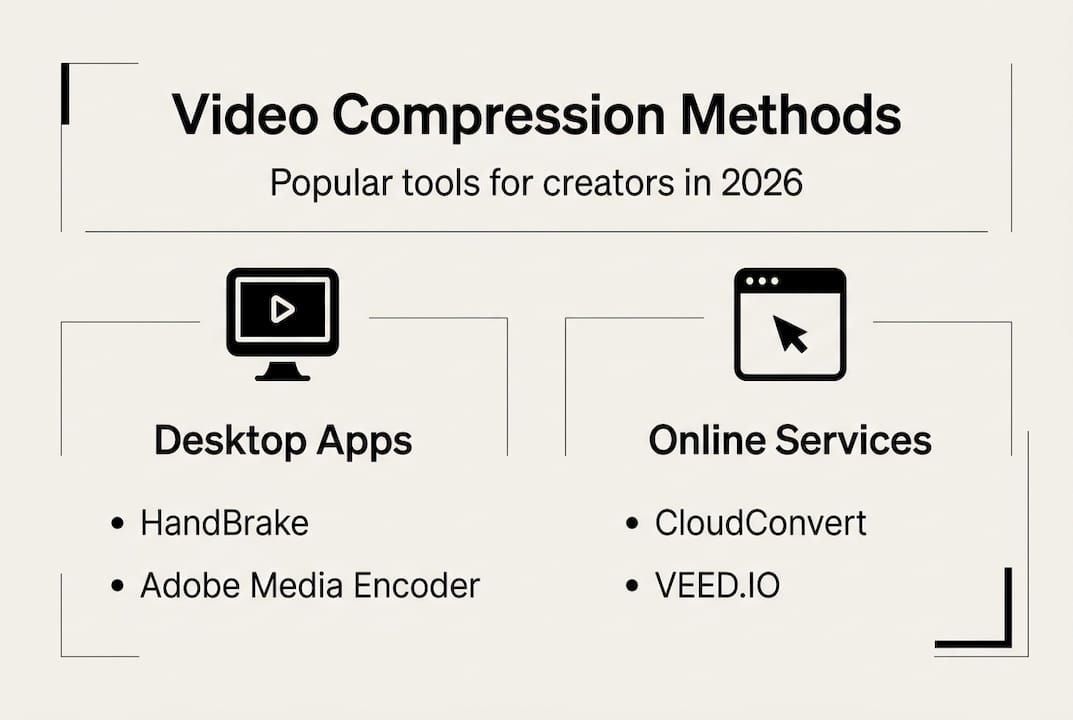
Compression tools range from professional desktop applications to convenient online services. Each approach offers distinct advantages depending on your technical skills, volume of content, and quality requirements. Desktop software provides maximum control and processing speed but requires installation and learning curves. Online compressors offer convenient compression with varying features, supporting multiple codecs and file formats through simple web interfaces.
| Tool Type | Processing Speed | Quality Control | Batch Processing | Cost |
|---|---|---|---|---|
| Professional software (Adobe Media Encoder, HandBrake) | Very fast with GPU acceleration | Extensive manual controls | Yes, unlimited | Free to $240/year |
| Online compressors (HEVCut, CloudConvert) | Moderate, depends on upload speed | Preset-based with some customization | Limited by plan tier | Free to $50/month |
| Mobile apps | Slow, limited by device power | Basic presets only | No | Free to $15/month |
| Cloud encoding services (AWS MediaConvert) | Very fast, scalable | API-driven, highly customizable | Yes, enterprise-scale | Pay per minute processed |
Pros and cons of each compression method:
- Desktop software: Maximum quality control and fastest processing, but steep learning curve and requires powerful hardware for 4K content
- Online tools: No installation needed and accessible anywhere, but upload times can be lengthy and file size limits apply on free tiers
- Mobile apps: Compress on-the-go directly from your phone, but limited codec options and slow processing on older devices
- Cloud services: Handles massive volumes efficiently with automated workflows, but requires technical integration knowledge and costs scale with usage
Your choice depends on workflow priorities. A YouTuber producing weekly content benefits from desktop software's speed and repeatability. A small business owner compressing occasional client videos may prefer the simplicity of online video compressors without software installation. Agencies managing hundreds of videos monthly need cloud services' scalability.
Pro Tip: Test multiple tools with identical source footage before committing to a workflow. Export the same 30-second 4K clip using different compressors at similar target file sizes, then compare the results on your actual playback devices. Quality differences often surprise you, and some tools excel with specific content types.
Implementing effective video file management tips alongside compression creates a complete storage optimization strategy. Organize compressed files with clear naming conventions, maintain original masters separately, and document compression settings for consistency across projects.
Maximizing benefits: practical tips for compressing high-res videos efficiently
Effective compression requires methodical approach rather than guesswork. Following a structured process ensures consistent results while avoiding common pitfalls that degrade quality unnecessarily. Optimizing compression settings and choosing appropriate codecs reduces storage costs and preserves video quality simultaneously.
Step-by-step guide to compressing videos efficiently:
- Analyze your source footage: Check resolution, frame rate, and bitrate of original files to establish baseline quality metrics
- Define target specifications: Determine final resolution, acceptable file size, and primary viewing platform requirements
- Select optimal codec: Choose HEVC for 4K/HDR content or H.264 for maximum compatibility with older devices
- Configure bitrate settings: Start with variable bitrate (VBR) at 70% of source bitrate, adjust based on quality preview
- Enable two-pass encoding: Allows codec to analyze entire video before compressing, improving quality distribution
- Test and validate: Compare compressed output against original on target playback devices before batch processing
- Document successful settings: Record exact parameters for repeatable results across similar content
Bitrate selection dramatically impacts both quality and file size. For 4K HEVC video, target 35-45 Mbps for high-quality results or 20-30 Mbps for good quality with smaller files. 1080p HEVC works well at 8-12 Mbps for most content. These ranges provide starting points; adjust based on your specific footage characteristics.
Common mistakes to avoid during compression:
- Compressing already-compressed files multiple times, which accumulates quality loss with each generation
- Using constant bitrate (CBR) instead of variable bitrate (VBR), wasting bits on simple scenes
- Ignoring audio compression, leaving oversized audio tracks that negate video size savings
- Failing to preserve original files before compression, eliminating ability to re-encode with different settings
- Skipping test encodes and processing entire libraries with untested settings
- Choosing resolution reduction when bitrate optimization would maintain quality better
Integrate compression into your workflow systematically. Create dedicated folders for originals, compressed versions, and test outputs. Use consistent naming conventions that identify compression settings at a glance. Automate repetitive tasks with batch processing once you've validated settings.
Pro Tip: Regularly review file size versus quality trade-offs as codec technology evolves. Settings that were optimal six months ago may be outdated as encoders improve. Revisit your compression parameters quarterly, testing whether newer codec versions or updated software delivers better results with identical settings.
Applying compression best practices transforms compression from a technical chore into a strategic advantage. Smaller files mean faster uploads to clients, quicker backups, and lower ongoing storage expenses without sacrificing the professional quality that defines your brand.
Discover HEVCut's video tools for efficient compression and storage
HEVCut simplifies video compression for creators and small businesses managing high-resolution content. The platform leverages HEVC codec technology to reduce file sizes by up to 70% while maintaining the visual quality your audience expects. Whether you're compressing smartphone footage or professional 4K projects, HEVCut's interface guides you through the process without requiring technical expertise.

Plan your storage needs before shooting with the video file size calculator, which estimates compressed file sizes based on your camera settings and desired quality level. This helps you budget storage costs accurately and choose optimal recording parameters. The calculator supports multiple codecs and resolutions, providing instant projections that inform both creative and business decisions.
Explore comprehensive compression tools and educational resources at HEVCut, where you'll find step-by-step tutorials, codec comparisons, and expert guidance tailored specifically for content creators. Start with the free trial to test compression on your actual footage, experiencing firsthand how much storage and cost you can save without compromising quality.
Frequently asked questions
What is video compression and why is it important?
Video compression reduces file sizes by removing redundant visual data that human eyes don't perceive. It's essential because uncompressed high-resolution footage consumes massive storage space, driving up cloud costs and slowing workflows. Modern compression maintains quality while cutting files by 50-70%, making content management practical and affordable.
Which video compression codec should I use for 4K videos?
HEVC is currently the preferred codec for efficiently compressing 4K videos with minimal quality loss. It delivers 40-50% better compression than H.264 while maintaining visual fidelity that satisfies professional standards. Most devices manufactured after 2018 support HEVC playback natively, making it practical for both storage and distribution.
Can video compression affect streaming performance?
Compression dramatically improves streaming by reducing bandwidth requirements. Proper compression reduces buffering and improves playback by decreasing file size and bandwidth requirements. Viewers experience faster start times and smoother playback, especially on mobile networks or slower internet connections where large files cause constant interruptions.
How can I estimate my video storage needs before compression?
Use the video file size calculator to project storage requirements based on your camera settings, desired codec, and target quality level. Input your recording resolution, frame rate, and planned footage duration to receive instant estimates. This helps you plan storage purchases, budget cloud costs, and optimize recording settings before shooting begins.
Does compression work equally well for all video types?
Compression efficiency varies significantly by content type. Static scenes with minimal motion compress extremely well, while fast action footage with complex details requires higher bitrates to maintain quality. Talking head videos, tutorials, and presentations achieve better compression ratios than sports, gaming, or nature content with constant movement and scene changes.
Should I compress videos before uploading to social media platforms?
Social platforms automatically compress uploaded videos, often degrading quality significantly. Pre-compressing with optimized settings gives you control over the quality-to-size ratio before platform algorithms further reduce files. Learn techniques for optimizing 4K and HDR compression to maintain maximum quality through the entire distribution chain from camera to viewer screens.