
Storing high-resolution videos in the cloud drains your budget fast. A single 4K project can consume gigabytes, forcing expensive storage upgrades every few months. Content creators and small businesses face mounting costs as raw video files pile up. This guide shows you how HEVC compression reduces video file size by up to 70% while preserving quality, then pairs that technique with smart cloud provider choices to slash storage expenses and reclaim control of your workflow.
Table of Contents
- Prerequisites and preparation before compressing and uploading videos
- Applying HEVC compression to reduce video file size
- Choosing the right cloud storage provider for large video files
- Common mistakes and troubleshooting when saving cloud space
- Expected results and measurable outcomes
- Alternative approaches and tradeoffs
- Optimize your video storage with HEVCut tools
- Frequently asked questions
Key takeaways
| Point | Details |
|---|---|
| HEVC compression reduces video size by up to 70% | Advanced encoding maintains visual quality while dramatically cutting file size. |
| Select cloud providers supporting large files | Services like pCloud and Sync.com handle uploads efficiently without throttling. |
| Back up originals before compression | Preserve uncompressed copies to prevent irreversible data loss. |
| Avoid overcompression and uploading raw files | Balance quality with size reduction and compress before uploading. |
| Expect 40% cloud storage cost savings | Combined compression and smart cloud use cuts expenses significantly over six months. |
Prerequisites and preparation before compressing and uploading videos
Before compressing any video, backup original video files before compression to an external drive or secondary cloud location. Losing your uncompressed source means you cannot recover quality if compression settings fail. Treat originals as your safety net.
Verify your hardware and software support HEVC (H.265) compression standards. Modern computers and smartphones handle HEVC natively, but older systems may need codec updates. Check your operating system version and install necessary codecs before starting.
Understand the tradeoff between compression ratio and visual quality. Pushing compression beyond 70% often introduces visible artifacts like blockiness or color banding. Aim for balance where file size drops significantly but quality degradation stays under 5%.
Prepare a test workflow using sample clips before processing your entire library. This step helps you choose between HEVC and H.264 based on your specific content needs and playback requirements.
- Backup uncompressed originals to external storage or secondary cloud
- Confirm your devices support HEVC encoding and playback
- Test compression settings on sample clips to find your quality threshold
- Document your optimal settings for consistent future results
Applying HEVC compression to reduce video file size
Use dedicated HEVC compression software like the HEVCut video compressor tool that offers both automatic and manual settings. Automatic modes work well for standard 1080p and 4K footage, while manual controls let you fine-tune bitrate for specialized content like HDR or high-motion sports videos.
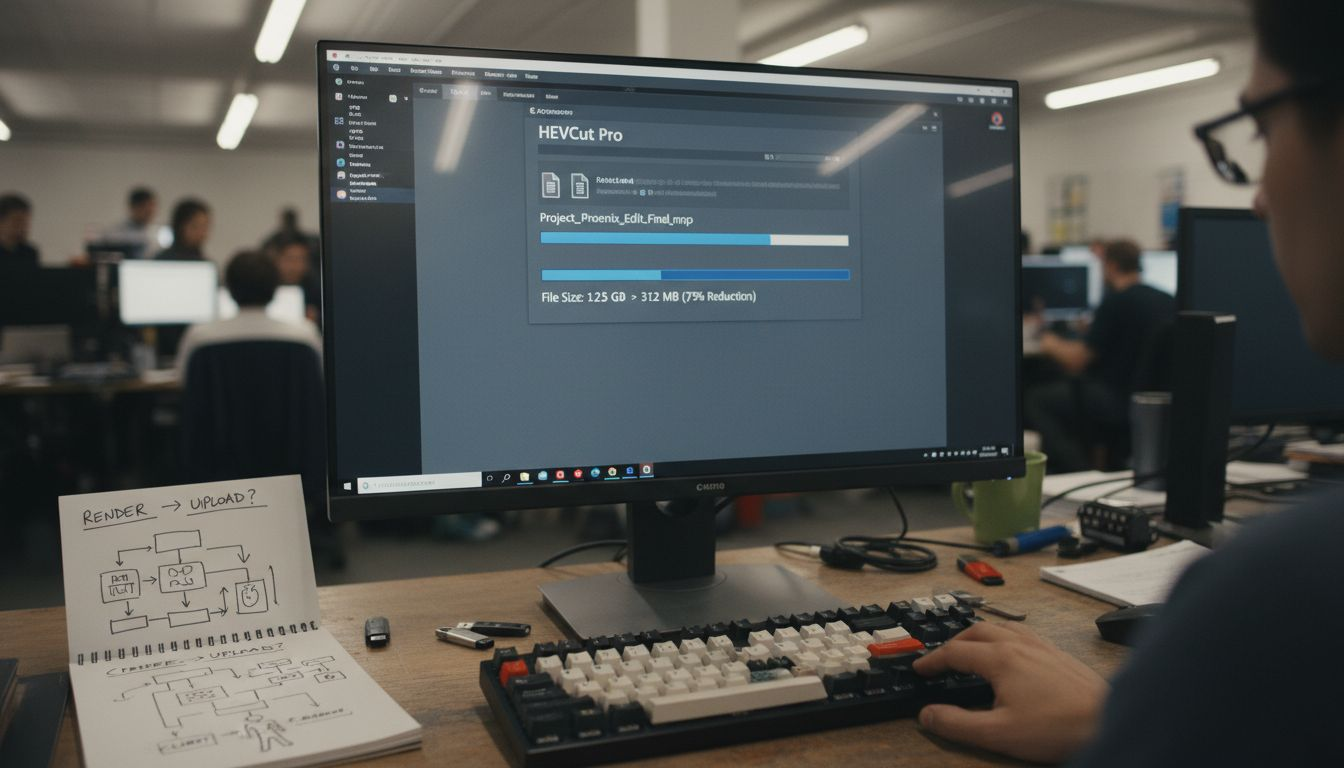
Start by compressing a short test clip to evaluate results. HEVC compression reduces file size by up to 70% without visible quality loss when configured properly. Compare the original and compressed versions on your target playback device to confirm quality meets your standards.
HEVC maintains high quality especially for 4K and HDR videos while reducing file size significantly. The codec uses advanced prediction algorithms that analyze motion and texture more efficiently than older standards, preserving detail in shadows and highlights that matter for professional work.
Pro Tip: Process your videos in batches overnight to maximize productivity without tying up your computer during work hours.
- Import your video file into HEVC compression software
- Select automatic settings for quick results or manual for precise control
- Choose target file size or quality level based on your storage goals
- Run compression on a test clip and review output quality carefully
- Apply settings to full video library once satisfied with results
- Use the storage savings calculator to estimate space reclaimed
Choosing the right cloud storage provider for large video files
Select cloud storage providers with no or very large file size limits. Cloud providers with large file support like pCloud and Sync.com eliminate frustrating upload failures that waste time and bandwidth. These services also offer fast upload speeds above 20 Mbps, critical for moving compressed videos efficiently.
Fast upload and download speeds determine how quickly you can access files remotely or share projects with collaborators. Services throttling speeds below 10 Mbps turn a 5-minute upload into a 30-minute ordeal, killing productivity. Prioritize providers advertising speeds matching your internet connection capabilities.
Adaptive streaming support enables instant playback and collaborative features without full downloads. Adaptive bitrate streaming (HLS) adjusts video quality based on viewer bandwidth, letting team members preview projects from any location without transferring gigabytes first.
Consider collaboration tools and security features to fit your workflow needs. Version control, commenting, and permission systems streamline team projects while encryption protects client content during storage and transit.
| Provider | File Size Limit | Upload Speed | Adaptive Streaming | Best For |
|---|---|---|---|---|
| pCloud | 50GB per file | Up to 300 Mbps | Yes | Large 4K projects |
| Sync.com | Unlimited | Up to 100 Mbps | Limited | Privacy-focused teams |
| Google Drive | 5TB per file | Up to 150 Mbps | Yes | Collaboration |
- Check provider file size limits before committing to annual plans
- Test upload speeds during your typical work hours to confirm performance
- Verify video file size calculator estimates against actual uploads
- Compare adaptive streaming support for remote collaboration needs
Common mistakes and troubleshooting when saving cloud space
Avoid overcompressing videos to prevent visible quality degradation. Common mistakes like overcompression and slow upload speeds undermine your cost savings when poor quality forces you to re-upload originals. Quality loss becomes noticeable beyond 5% degradation, appearing as blocky edges, washed-out colors, or stuttering motion.
Never upload uncompressed raw video files directly to cloud storage. Uploading raw video files sacrifices storage efficiency as they are 3 to 10 times larger than HEVC compressed files. Compress first using the HEVC compression tool, then upload the smaller result.
Monitor and improve your upload bandwidth to prevent slow transfers. Upload speeds below 20 Mbps can triple transfer times, slowing productivity and frustrating workflows. Contact your internet provider about upgrading or schedule uploads during off-peak hours when network congestion drops.
Back up originals before compression to safeguard against data loss. Equipment failures, software crashes, or compression errors can corrupt files mid-process. A backup ensures you can restart without losing irreplaceable footage.
Pro Tip: Run a monthly audit of your cloud storage to identify and archive outdated projects, keeping only active files synchronized for fastest access.
- Test compression settings on sample clips before batch processing
- Compress all videos with HEVC before uploading to maximize space savings
- Upgrade internet plans or schedule uploads during low-traffic periods
- Maintain external backups of uncompressed originals as insurance
- Choose cloud providers without low upload speed throttling
Expected results and measurable outcomes
Expect consistent 60% to 70% video file size reductions with HEVC compression across your library. A 10GB 4K video typically compresses to 3GB to 4GB without perceptible quality loss. These reductions compound quickly when processing dozens or hundreds of files.
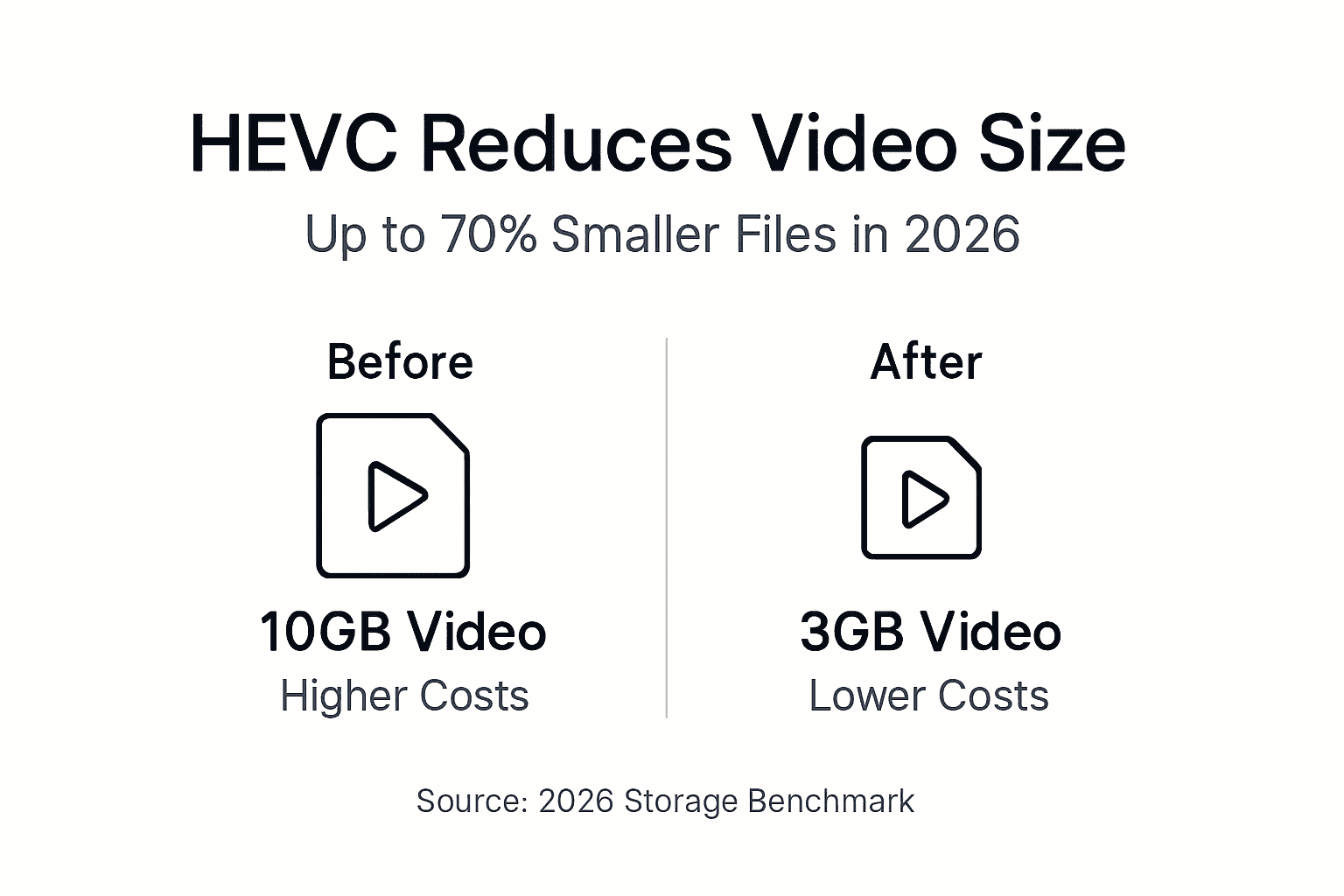
Cloud storage cost reductions can reach up to 40% during a six-month period. HEVC compression results and timelines show that typical users save money by avoiding one to two storage tier upgrades per year. A creator paying $120 annually for 200GB can drop to $72 for 100GB after compression.
Compression and upload of a typical 10GB 4K video take about 15 to 30 minutes depending on hardware and internet speed. Newer processors with hardware acceleration finish compression in 10 minutes, while older CPUs may take 40 minutes. Upload times vary by connection speed and provider infrastructure.
Measuring these outcomes helps optimize future workflows and cost planning. Track your storage savings guide for content creators metrics monthly to identify opportunities for further optimization or validate your current approach.
| Metric | Before HEVC | After HEVC | Improvement |
|---|---|---|---|
| Avg. file size (10min 4K) | 12GB | 4GB | 67% reduction |
| Monthly storage cost | $15 | $9 | 40% savings |
| Upload time (50 Mbps) | 32 minutes | 11 minutes | 66% faster |
| Annual cloud expense | $180 | $108 | $72 saved |
Alternative approaches and tradeoffs
File archival can reclaim 20% to 30% cloud space by deleting or moving old files to cheaper cold storage. Alternative video storage methods and tradeoffs require diligent management as you manually sort active from archived projects. This approach works well for seasonal content but demands time investment.
Hybrid storage blends local backups with cloud for cost balance but reduces easy remote access. Keeping frequently accessed files in the cloud while storing older projects on external drives cuts monthly bills. The tradeoff comes when you need archived footage quickly and must physically retrieve drives or wait for slow restores.
HEVC compression offers superior file size reduction and cost savings compared to other methods. Unlike archival or hybrid approaches, compression maintains immediate cloud access to all files while dramatically reducing storage footprint. You avoid the friction of managing multiple storage tiers.
Choosing a combination may fit specific user workflows better than compression alone. Wedding videographers might compress recent projects for cloud storage while archiving older weddings to external drives. Content creators with daily uploads benefit most from pure HEVC compression for consistent access.
| Approach | Space Savings | Cost Reduction | Access Speed | Management Effort |
|---|---|---|---|---|
| HEVC Compression | 60-70% | 40% | Instant | Low |
| File Archival | 20-30% | 25% | Delayed | High |
| Hybrid Local/Cloud | 30-40% | 30% | Mixed | Medium |
- File archival suits projects with clear end dates and infrequent access needs
- Hybrid storage balances cost with accessibility for medium-sized libraries
- HEVC compression provides maximum savings with minimal workflow disruption
- Combine methods for specialized workflows like long-term client deliverables
Optimize your video storage with HEVCut tools
Compressing videos and choosing the right cloud provider transforms your storage budget from a growing expense into a controlled cost. HEVCut offers easy-to-use video compressor tool designed specifically for content creators and small businesses facing these exact challenges.

Calculate your potential savings before committing time to compression. The storage savings calculator shows exactly how much space and money you will reclaim based on your current library size. Use the video file size calculator to estimate compressed sizes for planning cloud capacity needs.
Streamline your workflow and save on cloud costs by pairing HEVCut with an optimized cloud service. The platform handles both automatic compression for quick results and manual fine-tuning for specialized content, ensuring you maintain quality while maximizing savings.
Frequently asked questions
How much space can I save using HEVC compression on my videos?
HEVC compression typically reduces video file sizes by 60% to 70% while maintaining quality across most content types. A 10GB 4K video compresses to approximately 3GB to 4GB without perceptible loss. Using tools like HEVCut ensures minimal quality degradation with maximum space savings through optimized encoding profiles.
What are the best cloud storage options for large video files in 2026?
pCloud and Sync.com offer large or unlimited file size limits and fast upload speeds ideal for high-resolution videos. Services supporting adaptive streaming enhance productivity and collaboration by enabling instant preview without full downloads. Compare providers based on your specific upload bandwidth and team collaboration requirements.
How can I avoid losing video quality when compressing files?
Balance compression ratio with visual quality by testing settings on sample clips before bulk processing. Avoid overcompressing as quality loss becomes noticeable beyond 5% degradation, appearing as artifacts or color shifts. Always keep backups of original raw files to revert if compression results fall short of expectations.
What common mistakes should I avoid to save space efficiently on cloud?
Don't upload uncompressed raw videos as they waste space and money compared to HEVC alternatives. Avoid overcompression which lowers video quality noticeably and forces re-uploads. Choose cloud providers with sufficient upload bandwidth and file size limits to prevent workflow delays. Always backup originals before compression to protect against data loss from processing errors.