
TL;DR:
- Advances enable 40% or more HDR file size reduction while maintaining quality.
- Proper metadata preservation and codec choice, like HEVC or AV1, are critical.
- Follow strict workflow and validation steps to prevent quality loss and artifacts.
Compressing HDR video has a reputation for being destructive. Push the bitrate too low, and you lose the luminance detail and color depth that made the footage worth shooting in the first place. But that reputation is outdated. Advances in codec technology and smarter workflows now let content creators, small businesses, and professional videographers shrink HDR files by 40% or more while keeping the highlights, shadows, and color volume intact. This guide walks through the codecs, metadata rules, and troubleshooting steps that separate clean HDR compression from the kind that makes your footage look flat and broken.
Table of Contents
- Understanding HDR video and why compression matters
- Codec choices: Which tools keep HDR quality and shrink files?
- Crucial workflow steps: Preserving HDR metadata and visual integrity
- Troubleshooting artifacts and maximizing efficiency
- Our take: The biggest mistake creators make (and how to avoid it))
- Effortless HDR video compression with HEVCut
- Frequently asked questions
Key Takeaways
| Point | Details |
|---|---|
| Preserve HDR metadata | Missing metadata is the #1 reason HDR video looks dull or loses detail after compression. |
| Choose efficient codecs | HEVC and AV1 compression can cut HDR video storage by nearly half compared to older H.264. |
| Follow workflow best practices | Step-by-step workflows and proper tool selection prevent artifacts and maintain HDR's full quality. |
| Watch for common pitfalls | Most user complaints stem from workflow mistakes—not file size settings. |
| Automate with trusted tools | Purpose-built compressors and calculators make HDR video management faster and error-free. |
Understanding HDR video and why compression matters
HDR stands for High Dynamic Range, and the name tells you exactly what makes it hard to compress. These videos carry far more luminance data than standard dynamic range (SDR) footage, reaching peak brightness levels of 1,000 to 10,000 nits compared to SDR's typical 100 nits. The color gamut is wider too, often covering Rec. 2020 instead of the narrower Rec. 709 used in SDR workflows. That extra data is what makes HDR look stunning on a compatible display. It is also what makes the files enormous.
A single minute of 4K HDR footage shot at a high bitrate can easily exceed 10 GB. Multiply that across a full project library, and storage costs spiral fast. Compression is not optional for most creators. The problem is that HDR is uniquely fragile during compression because aggressive settings tend to clip highlights, introduce color banding in gradients, and flatten the very contrast range that defines the format.
Here is what makes HDR compression fundamentally different from SDR:
- Metadata dependency: HDR video relies on embedded metadata to tell displays how to render the image. Strip that metadata and the video plays back flat or incorrectly, even if the pixel data is intact.
- Wider color gamut: More color information means more data to preserve per frame, raising the minimum viable bitrate.
- Tone curve complexity: HDR uses perceptual transfer functions like PQ (Perceptual Quantizer) or HLG (Hybrid Log-Gamma), which compress differently than SDR gamma curves.
- Platform requirements: YouTube supports HDR uploads only when the metadata is correctly embedded in the container, not just in the codec stream.
"The metadata is not decoration. It is the instruction set that tells every screen, player, and platform how to interpret your image. Lose it, and you lose HDR."
Pro Tip: Before you compress anything, verify your source file's HDR metadata using a tool like MediaInfo. Confirm the color primaries, transfer characteristics, and mastering display metadata are all present. If they are missing at the source, no compression workflow will save you.
Following compression best practices from the start saves hours of rework later. If storage costs are already a concern, understanding cutting video costs through smart compression is worth reviewing before you build your pipeline.
Codec choices: Which tools keep HDR quality and shrink files?
Not all codecs handle HDR equally. H.264, the format that still dominates a huge portion of online video, was designed before HDR was a mainstream concern. It lacks native support for the PQ and HLG transfer functions, and its compression efficiency simply cannot keep up with the data demands of 4K HDR content at acceptable quality levels.
HEVC (H.265) changed the game. It was built with HDR in mind, supports both PQ and HLG natively, and delivers roughly 40 to 50% bitrate reduction over H.264 at equivalent visual quality. AV1, developed by the Alliance for Open Media, matches or slightly exceeds HEVC efficiency in many scenarios and is royalty-free, making it attractive for streaming platforms. Newer learned codec methods like LBSVC push even further, achieving 32.5% bitrate savings over traditional scalable codecs on HDR benchmarks.

| Codec | HDR support | Bitrate efficiency vs. H.264 | Best use case |
|---|---|---|---|
| H.264 | Limited | Baseline | SDR delivery, legacy devices |
| HEVC (H.265) | Full (PQ, HLG) | 40 to 50% better | Archiving, YouTube, streaming |
| AV1 | Full (PQ, HLG) | 45 to 55% better | Web streaming, YouTube |
| LBSVC (learned) | Emerging | Up to 32.5% over SHM | Research, future pipelines |
Choosing between HEVC and AV1 often comes down to your distribution target:
- YouTube and streaming: Both HEVC and AV1 are supported. AV1 is increasingly preferred for its open licensing.
- Long-term archiving: HEVC in an MKV or MP4 container is a proven, stable choice.
- Broadcast or client delivery: HEVC is more universally supported across hardware decoders.
Pro Tip: Never use H.264 as your master archive codec for HDR footage. Even if the visual quality looks acceptable on your monitor, the metadata handling is unreliable and the efficiency penalty means you are storing far more data than necessary.
For a deeper look at optimizing 4K and HDR storage, the codec choice is just the starting point. Understanding HEVC for HDR compression specifically, and how it compares in HEVC vs. H.264 scenarios, gives you the full picture before committing to a pipeline.
Crucial workflow steps: Preserving HDR metadata and visual integrity
Choosing the right codec gets you halfway there. The other half is executing the workflow correctly, because even HEVC can produce broken HDR output if the container settings and metadata flags are wrong.
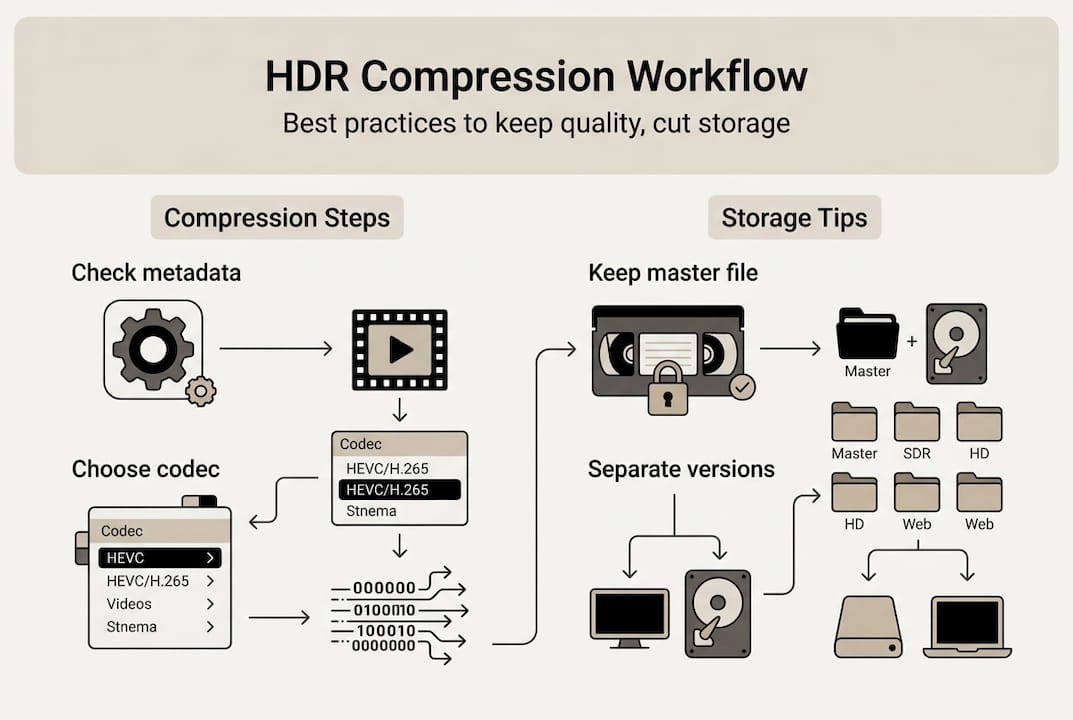
Here is a reliable step-by-step process for compressing HDR video without quality loss:
- Verify source metadata using MediaInfo or a similar tool. Confirm color primaries (Rec. 2020), transfer function (PQ or HLG), and mastering display luminance values.
- Choose your codec and container. HEVC in MP4 or MKV works for most platforms. AV1 in WebM or MP4 suits web delivery.
- Set your bitrate. For 4K HDR, a minimum of 35 to 45 Mbps in HEVC maintains quality. Lower bitrates risk visible banding.
- Pass through HDR flags. In FFmpeg, use "-colorspace bt2020nc -color_primaries bt2020 -color_trc smpte2084` to preserve PQ metadata.
- Run a test encode on a 30-second clip before processing the full file. Check it on an HDR display and in a player like VLC or mpv.
- Validate the output with MediaInfo again. Confirm all metadata fields survived the encode.
- Deliver or upload. For YouTube, use tonemapping only when creating an SDR version, not the HDR master.
| Platform | Recommended container | HDR metadata required | Notes |
|---|---|---|---|
| YouTube | MP4 | Yes (PQ or HLG) | Supports HEVC and AV1 |
| Vimeo | MP4 | Yes | Requires HDR-enabled account |
| Archiving | MKV | Yes | MKV preserves more metadata fields |
| SDR delivery | MP4 | Tonemapped to SDR | Use hable or reinhard tonemapping |
For SDR platforms, tonemapping in FFmpeg using the hable algorithm converts HDR to SDR without the severe clipping that simpler methods produce. This is critical when delivering to clients whose displays do not support HDR.
Pro Tip: Always keep your HDR master file untouched. Create a separate SDR version for non-HDR delivery. Never overwrite the original with a tonemapped export.
For more on optimized HDR storage and practical video file management tips, building a folder structure that separates masters from delivery files prevents costly mistakes.
Troubleshooting artifacts and maximizing efficiency
Even with a solid setup, HDR compression can produce artifacts that are hard to spot until the video is on a client's screen. Knowing what to look for saves time and protects your reputation.
The most common problems are:
- Color banding: Smooth gradients in skies or shadows break into visible steps. Usually caused by bitrate that is too low or 8-bit encoding instead of 10-bit.
- Blockiness: Especially visible in flat areas like walls or skin tones. Sign of overly aggressive quantization.
- Highlight clipping: Bright areas like sunlit windows or specular reflections lose detail and blow out to white. Often a tonemapping error.
- Crushed shadows: Dark areas lose texture and detail, making the image look flat.
"If your sky looks like a watercolor painting with visible steps, your bitrate is too low for the color depth you are working with. 10-bit encoding is not optional for HDR."
High-motion scenes are especially vulnerable to blocking artifacts when compression is aggressive. Fast camera pans, sports footage, and action sequences need higher bitrates than static or slow-moving content.
Here is a quick verification checklist before releasing any HDR video:
- Play the output on an actual HDR display, not just your editing monitor
- Check gradients in the sky, skin tones, and any smooth color transitions
- Confirm MediaInfo shows correct color primaries and transfer function
- Test in at least two players (VLC and a native platform player)
- Review high-motion segments at full resolution, not in a compressed preview
Pro Tip: If you spot banding after export, increase your bitrate by 20% and re-encode the affected sections. If banding persists, switch from 8-bit to 10-bit encoding. Banding in 10-bit HEVC at adequate bitrate is rare.
Building cost-saving storage strategies around efficient compression reduces the need for upgrading storage constantly. Revisiting compression best practices after troubleshooting helps you refine your settings for future projects.
Our take: The biggest mistake creators make (and how to avoid it)
Most creators approach HDR compression with one question: how small can I make this file? That is the wrong starting point. Chasing the smallest possible file size leads to decisions that destroy the very qualities that make HDR footage worth keeping.
The real quality killer is not aggressive compression. It is missing metadata and sloppy container settings. We have seen projects where the video looked perfect in the editing timeline but played back completely flat on every device after export. The codec was fine. The bitrate was reasonable. The problem was that the export settings stripped the color primaries and transfer function flags, leaving the player with no idea how to render the image.
A simple checklist would have caught it in two minutes. Verify metadata before encoding. Verify it again after. Test on a real HDR display before delivery. These steps take less time than a single re-encode.
Obsessing over squeezing out an extra 5% file size reduction while skipping validation is how projects get delayed and clients get unhappy. The sweet spot is a file that is small enough to be practical and complete enough to play correctly everywhere. Leveraging HEVC for creators is about working smarter, not just compressing harder.
Effortless HDR video compression with HEVCut
Applying all of these workflow steps manually takes time, and the margin for error is real. HEVCut was built specifically to remove that friction for content creators, small businesses, and videographers who need reliable HDR compression without spending hours in command-line tools.

With HEVCut's video compressor, you can process HDR and 4K files using HEVC compression that preserves metadata automatically, reducing file sizes by up to 70% without the manual flag-setting. Not sure how much space you will save before committing? The video size calculator gives you an instant estimate. HEVCut offers a free trial so you can test it on your next HDR project and see the results before paying a cent.
Frequently asked questions
What is the best codec for compressing HDR video in 2026?
HEVC and AV1 are the strongest options right now, each offering 40 to 50% better compression than H.264 at equivalent quality. For most creators, HEVC is the safest choice due to its broad hardware support.
How do I keep HDR metadata when compressing a video?
Use an HDR-aware codec like HEVC or AV1 and confirm your export settings pass through color primaries, transfer function, and mastering display metadata. YouTube requires this metadata to be embedded correctly in the container for HDR playback to work.
What should I do if my HDR video looks dull after compression?
First, check that HDR metadata survived the encode using MediaInfo. If the transfer function or color primaries are missing, the player defaults to SDR rendering. A correct tonemapping approach is only needed when intentionally converting to SDR, not for HDR delivery.
How can I compress HDR videos for platforms that don't support HDR?
Use FFmpeg with a quality tonemapping algorithm like hable to convert HDR to SDR without harsh clipping. Always keep the original HDR master file separate so you can re-export if the platform adds HDR support later.