
Managing high-resolution video files has become one of the biggest challenges facing content creators and small businesses today. Your video libraries are expanding by 25 to 35% each year, eating up storage and slowing workflows to a crawl. Disorganized footage wastes precious hours, costs balloon as cloud storage fills up, and editing large 4K or 8K files pushes even capable systems to their limits. This guide gives you actionable strategies to take control of your video file management, streamline your workflow, and cut costs without compromising quality.
Table of Contents
- Understanding the challenges of high-resolution video file management
- Optimizing video storage: codecs, compression, and tiered solutions
- Streamlining your editing workflow with proxies and metadata
- Choosing the right storage setup: hybrid local and cloud solutions
- Optimize your video file management with HEVCut tools
Key takeaways
| Point | Details |
|---|---|
| High-resolution videos demand smart storage solutions | 4K and 8K files consume massive space, requiring efficient organization and storage strategies to control costs. |
| Advanced codecs reduce file sizes significantly | HEVC and AV1 compression cut storage needs by 30 to 70% while maintaining visual quality. |
| Proxy workflows speed up editing dramatically | Lower-resolution proxy files improve editing performance by 3x to 10x on high-res footage. |
| Hybrid storage balances speed and cost | Combining local drives for active projects with cloud archival solutions optimizes both access speed and budget. |
| Automated tiering cuts long-term storage expenses | Smart data management tools move older footage to low-cost archives automatically. |
Understanding the challenges of high-resolution video file management
High-resolution video creates an immediate storage problem. 4K footage consumes 20 to 22GB per hour, while 8K content pushes that to 36 to 38GB per hour. If you shoot regularly, you're looking at terabytes of data accumulating faster than you can organize it.
These massive file sizes slow everything down. Transferring files between drives takes forever. Editing performance suffers as your system struggles to process enormous video streams. Backing up projects becomes a time-consuming chore that eats into your creative hours.
Disorganized libraries compound the problem. Knowledge workers spend up to 30% of their time searching for information, and video content management is particularly challenging. When you can't find the footage you need quickly, deadlines slip and frustration builds.
Storage costs pile up fast. Cloud services charge monthly fees that scale with your library size. External hard drives fill up and need constant replacement. Without a strategy, you're either paying too much or drowning in a chaotic mess of unlabeled files scattered across multiple locations.
Understanding these challenges is your first step toward building a sustainable workflow. Smart video file management isn't just about buying more storage. It's about choosing the right tools, organizing systematically, and leveraging modern compression technologies to work efficiently.
Pro Tip: Before shooting, estimate your project's total storage needs based on resolution, frame rate, and expected footage duration to avoid mid-project storage crises.
Optimizing video storage: codecs, compression, and tiered solutions
Your choice of video codec dramatically impacts storage requirements. HEVC roughly doubles compression efficiency compared to H.264, the older standard most cameras still use by default. This means you can store twice as much footage in the same space without losing quality.
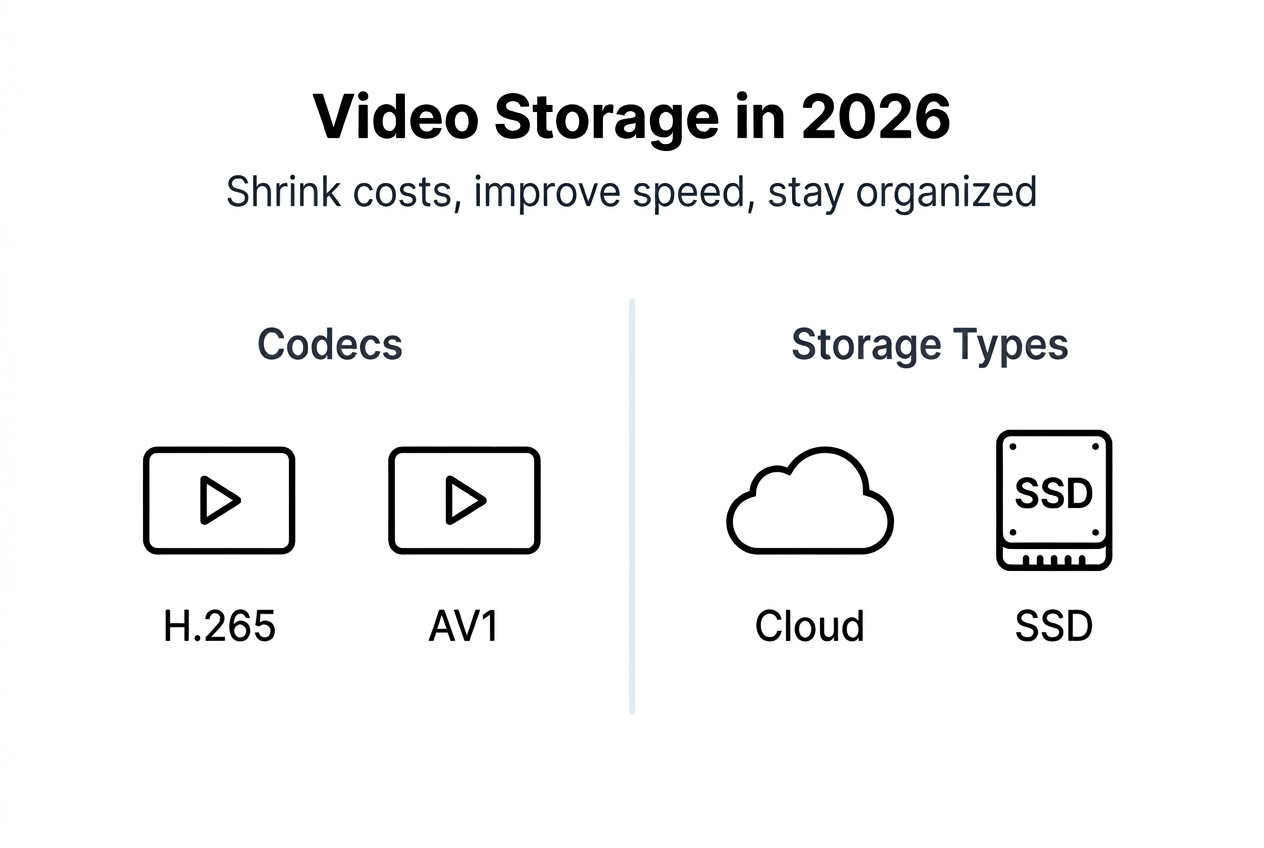
AV1 takes compression even further. This newer codec reduces file sizes by 30 to 50% compared to both VP9 and HEVC at equivalent quality levels. While adoption is still growing, AV1 represents the future of efficient video storage, especially for web delivery and archival purposes.
Comparing these codecs shows clear advantages for modern formats:
| Codec | Compression vs H.264 | Best Use Case | Compatibility |
|---|---|---|---|
| H.264 | Baseline | Legacy systems, broad compatibility | Universal |
| HEVC (H.265) | 2x more efficient | 4K/8K recording, streaming | Good, improving |
| AV1 | 1.5x better than HEVC | Web delivery, long-term archival | Limited but growing |
Storage tiering automates cost optimization. Services like S3 Intelligent-Tiering analyze access patterns and automatically move infrequently accessed files to cheaper storage tiers without any performance impact. You pay premium rates only for footage you actively use.
Cloud providers offer multiple storage classes designed for different access needs. Hot storage delivers instant access but costs more. Cool or cold storage archives older projects at a fraction of the price, with slightly slower retrieval times that don't matter for completed work.
Choosing between HEVC or H.264 depends on your specific workflow and playback requirements. HEVC saves tremendous space but requires more processing power for encoding and playback. Balance compression efficiency against your editing system's capabilities and delivery format requirements.
Pro Tip: Convert completed projects to HEVC for archival storage while keeping active project files in your editing codec of choice to maintain the smoothest workflow during production.
Use the storage calculator to model different codec choices and predict your actual storage costs before committing to a workflow.
Streamlining your editing workflow with proxies and metadata
Proxy workflows transform how you work with large files. Proxy editing improves speed by 3x to 10x, especially when handling high-resolution footage on systems that struggle with native 4K or 8K playback. You edit lower-resolution copies that maintain the same timing and structure, then automatically relink to full-quality originals for final export.

Creating proxies is straightforward in modern editing software. Most applications offer built-in proxy generation that runs in the background while you work on other tasks. Set your proxy resolution to match your timeline resolution for the smoothest playback, typically 1080p or 720p for 4K source material.
Organization prevents the time waste that kills productivity. Editors waste up to 30% of their time searching for files when workflows lack structure. Build a consistent folder hierarchy before you start shooting, not after your drives are already full.
Metadata makes footage searchable. Tag clips with relevant keywords describing content, location, date, and project as you ingest them. This small upfront investment pays massive dividends when you need to find specific shots months later across hundreds of clips.
Implement these organizational practices immediately:
- Create project folders with consistent naming conventions including date and client name
- Separate raw footage, project files, exports, and assets into dedicated subfolders
- Tag clips with searchable metadata during import, not later when you're rushed
- Use color labels or ratings to mark best takes and problematic clips during review
- Document camera settings and shooting notes in a project log file
Apply effects and color grading after your rough cut is locked. Heavy processing slows playback even with proxies. Get your story structure right first with minimal effects, then polish once you've committed to your edit.
Proxy workflows excel when working remotely or collaborating with distributed teams. Share smaller proxy files for review and editing while keeping massive originals in a central location. Only transfer full-resolution files when absolutely necessary for final delivery.
Pro Tip: Generate proxies at the same time you create backups to maximize efficiency and ensure you never start editing without proxy files ready.
The content creators ultimate storage guide covers advanced organizational strategies for managing growing video libraries over time.
Choosing the right storage setup: hybrid local and cloud solutions
Balancing speed and cost requires a hybrid approach. Local external drives deliver the fast access speeds essential for active editing. Cloud storage provides collaboration features and cost-effective archival for completed projects. Combining both gives you the best of each world.
Local storage works best for footage you're actively editing. Solid-state drives offer blazing speed but cost more per terabyte. Traditional spinning hard drives provide cheaper bulk storage with adequate performance for most editing tasks. Use SSDs for current project files and HDDs for near-term archives.
Cloud storage shines for collaboration and long-term archival. Azure Blob Storage costs pennies per terabyte in archive tiers, making it incredibly economical for footage you rarely access. Upload completed projects to free up local drive space while maintaining secure, geographically distributed backups.
A hybrid approach combining cloud and external drives is widely recommended by video professionals for good reason. Keep active projects on fast local storage. Archive completed work to cloud storage. Maintain a local backup of everything on spinning hard drives as insurance against cloud service issues.
Data tiering policies automate this process. Set rules that automatically move files older than a certain age from local storage to cloud archives. Most cloud providers offer lifecycle management tools that trigger these moves without manual intervention.
Consider these storage cost comparisons when planning your setup:
| Storage Type | Cost per TB/Month | Access Speed | Best For |
|---|---|---|---|
| Local SSD | $15-30 (one-time ~$100/TB) | Instant | Active editing |
| Local HDD | $3-8 (one-time ~$20/TB) | Fast | Near-term archives |
| Cloud Hot | $20-25 | Instant | Shared active projects |
| Cloud Cool | $10-15 | Seconds | Recent completed work |
| Cloud Archive | $1-4 | Minutes to hours | Long-term storage |
Your storage strategy should scale with your library. Start simple with external hard drives and a basic cloud backup. As your needs grow, add faster local SSDs for editing and implement automated tiering to manage costs without constant manual file shuffling.
Pro Tip: Set calendar reminders to review and archive projects quarterly, moving completed work off expensive local storage before your drives fill up and force emergency decisions.
The video size calculator helps estimate storage needs for upcoming projects so you can provision the right storage before you start shooting.
Use the storage calculator to compare costs across different storage configurations and find the optimal balance for your specific usage patterns.
Optimize your video file management with HEVCut tools
Managing video files efficiently requires the right tools, and HEVCut delivers exactly what content creators need. The platform leverages advanced HEVC compression to reduce file sizes by up to 70% without sacrificing visual quality, directly addressing the storage challenges we've covered.

The video compressor simplifies the compression process with both automatic and manual controls. Upload your high-resolution footage and let the platform handle the technical details, or fine-tune settings for specific delivery requirements. Either way, you'll see dramatic storage savings that reduce costs and speed up workflows.
Planning prevents storage surprises. Use the storage calculator to model different scenarios and understand exactly how much space your video library will consume over time. Input your shooting volume, resolution preferences, and retention policies to get accurate cost projections before committing to expensive storage purchases.
The video size calculator estimates file sizes based on your specific camera settings and recording parameters. Know exactly how much footage you can capture before filling your cards or drives, eliminating the stress of running out of space mid-shoot.
Video file management tips frequently asked questions
What is the best video codec for reducing file size without quality loss?
HEVC (H.265) offers the best balance of compression efficiency and compatibility for most creators in 2026. It delivers roughly double the compression of H.264 while maintaining equivalent visual quality, and playback support has improved dramatically across devices and editing software. AV1 provides even better compression but limited compatibility makes it better suited for web delivery than editing workflows.
How do proxy workflows help when editing 4K or 8K video?
Proxy workflows create lower-resolution copies of your footage that maintain perfect sync with originals. Editing these smaller files requires far less processing power, improving playback performance by 3x to 10x. You work smoothly with proxy files throughout editing, then automatically switch to full-resolution originals only for final export, getting professional results without needing an expensive editing workstation.
Can cloud storage reduce costs for large video archives?
Cloud storage dramatically reduces costs for archival footage through tiered pricing models. Services like Azure Blob Storage and AWS S3 charge just pennies per terabyte for infrequently accessed files, far less than maintaining local hard drives. Automated tiering moves older projects to these cheap archive tiers without manual intervention, cutting long-term storage costs by 80% or more compared to all-local storage.
How often should I organize and catalog my video library?
Organize footage immediately during import and catalog projects at completion. Tag clips with metadata as you ingest them so they're searchable from day one. Review and archive completed projects quarterly, moving finished work off expensive local storage to cloud archives. This regular maintenance prevents the overwhelming backlog that makes organization feel impossible.
What tools can help me estimate my video storage needs?
Storage and video size calculators let you model storage requirements before shooting. Input your camera resolution, frame rate, codec choice, and expected shooting duration to get accurate size estimates. These tools help you provision the right amount of storage for projects, compare codec efficiency, and project long-term costs as your library grows. Planning with calculators prevents expensive surprises and emergency storage purchases.