HDR video delivers stunning visual quality, but the file sizes can quickly consume your storage. Content creators face a constant challenge: how do you compress HDR footage effectively without sacrificing the vibrant colors and dynamic range that make it special? This tutorial walks you through practical compression techniques using modern codecs like HEVC Main10, proper metadata handling, and workflows that balance storage efficiency with professional quality. You'll learn how to prepare, compress, and verify HDR video while maintaining the visual integrity your audience expects.
Table of Contents
- Key Takeaways
- Understanding HDR video compression essentials
- Preparing your HDR video for compression
- Executing the HDR video compression process
- Verifying and troubleshooting HDR compressed video quality
- Optimize your HDR compression workflow with HEVCut tools
- FAQ
Key Takeaways
| Point | Details |
|---|---|
| HEVC Main10 standard | HEVC Main10 with 10-bit depth and HDR metadata is the current compression standard for HDR video. |
| Mastering display settings | Setting correct mastering display parameters and bitrates is critical for preserving HDR quality during compression. |
| HDR metadata importance | MaxCLL and MaxFALL values inform displays how to render HDR content correctly. |
| Tone mapping before compression | Applying tone mapping before compression helps preserve HDR quality in complex scenes. |
| Hybrid playback workflows | Hybrid workflows accommodate various playback environments including SDR fallback. |
Understanding HDR video compression essentials
HDR video relies on specific technical foundations that differ significantly from standard dynamic range content. The Rec.2020 color space provides a wider gamut than traditional Rec.709, capturing more vibrant colors and subtle gradations. Transfer functions define how brightness values map to display capabilities, with two primary options dominating the landscape.
PQ (Perceptual Quantizer) powers most streaming HDR content including HDR10, optimizing for absolute brightness levels up to 10,000 nits. HLG (Hybrid Log-Gamma) serves broadcast applications and offers backward compatibility with SDR displays without requiring metadata. Each serves distinct use cases, with PQ delivering precision for controlled viewing environments and HLG providing flexibility for varied playback scenarios.
HDR video compression primarily uses HEVC Main10 profile with 10-bit depth for platforms like YouTube, supporting Rec.2100 PQ or HLG transfer functions, Rec.2020 color primaries, and requires HDR metadata for playback. This codec choice isn't arbitrary; it represents the best balance between compression efficiency and hardware support across devices. The Main10 profile specifically enables 10-bit encoding, which is crucial for preventing banding in smooth gradients like skies and shadows.
Metadata plays a critical role in HDR playback. MaxCLL (Maximum Content Light Level) and MaxFALL (Maximum Frame Average Light Level) values inform displays how to render your content correctly. Without this metadata, even properly encoded HDR video may display incorrectly or default to SDR. Think of metadata as the instruction manual that tells each display how to interpret your carefully graded footage.
Bit depth determines how many color values exist between pure black and pure white. Standard 8-bit video offers 256 levels per color channel, while 10-bit provides 1,024 levels. This four-fold increase dramatically reduces banding artifacts in gradual transitions. For HDR content with its expanded dynamic range, 10-bit becomes essential rather than optional. Following video compression best practices ensures you maintain this quality throughout your workflow.
Key differences between PQ and HLG:
- PQ requires absolute brightness metadata and works best for streaming platforms with controlled playback environments
- HLG uses relative brightness values and automatically adapts to display capabilities without metadata
- PQ delivers more precise control over highlights and shadows in mastered content
- HLG simplifies distribution across mixed SDR and HDR viewing scenarios
- PQ dominates consumer streaming services while HLG serves broadcast television
Preparing your HDR video for compression
Proper preparation determines whether your compressed HDR video maintains professional quality or suffers from preventable artifacts. Start by configuring your project timeline for 10-bit color depth and Rec.2020 color space before you begin editing. Retroactively changing these settings after color grading introduces conversion errors that compression will amplify.
Mastering display parameters define the peak brightness and color volume your content targets. In DaVinci Resolve, navigate to Project Settings and set your Color Science to DaVinci YRGB Color Managed, then specify your mastering display under Color Management. For most streaming applications, P3-D65 at 1000 nits provides the sweet spot between creative intent and real-world display capabilities. Setting this too high (like 4000 nits) creates content that looks dim on typical consumer displays.

Practical workflow in DaVinci Resolve or Premiere Pro involves setting HDR mastering display (e.g., P3-D65 1000 nits), exporting HEVC Main10 MP4, bitrates 80-120 Mbps for 8K, including HDR10 metadata. In Premiere Pro, access these settings through Export Settings by selecting HEVC format and enabling HDR metadata in the Video tab. The interface differs between applications, but the core parameters remain consistent.
Bitrate selection requires balancing file size against quality retention. Higher bitrates preserve more detail but defeat the purpose of compression if they approach your original file size. Consider your content's characteristics: fast-moving sports footage demands higher bitrates than talking-head interviews. Test compression on a representative clip before processing your entire project.
Export settings checklist:
- Codec set to HEVC Main10 with hardware acceleration enabled if available
- Color space configured as Rec.2020 with PQ or HLG transfer function
- Bit depth locked at 10-bit minimum (12-bit if your source supports it)
- HDR10 metadata enabled with MaxCLL and MaxFALL values calculated from your timeline
- Target bitrate appropriate for your resolution and content complexity
Pro Tip: Export a 30-second test clip at multiple bitrate settings and compare them on an HDR-capable display before committing to your full export. This simple step catches issues like insufficient bitrate or incorrect metadata before you waste hours processing your entire project. Implementing HEVC storage optimization strategies during this phase saves significant time and storage costs.
Executing the HDR video compression process
Compression execution transforms your prepared HDR footage into efficiently stored files while maintaining visual fidelity. The process involves selecting the right codec, configuring encoding parameters, and handling edge cases that can compromise quality. Understanding each step prevents common pitfalls that waste processing time and storage space.
Step-by-step compression workflow:
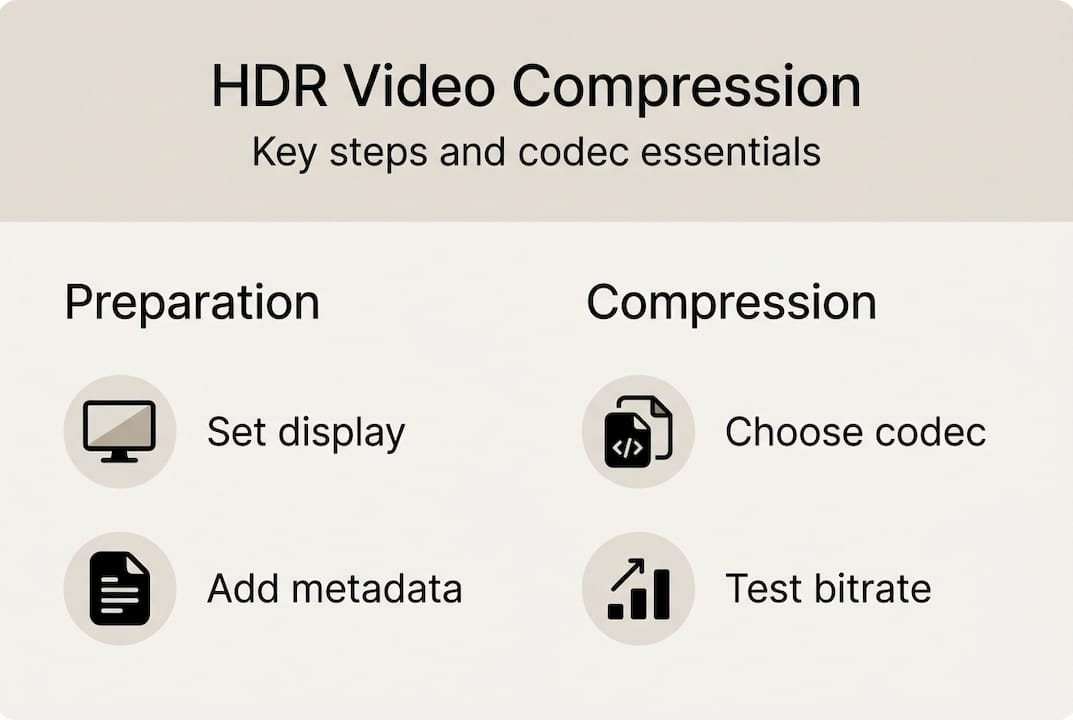
- Load your prepared HDR video file into your chosen encoder (NLE export function or standalone tool like HandBrake)
- Select HEVC Main10 codec and verify 10-bit depth is enabled in advanced settings
- Set your target bitrate based on resolution: 25-60 Mbps for 4K, 80-120 Mbps for 8K content
- Enable HDR metadata passthrough to preserve MaxCLL and MaxFALL values from your source
- Configure GOP (Group of Pictures) length to 1-2 seconds for optimal seeking performance
- Start encoding and monitor the first few minutes for any quality warnings or errors
HEVC offers ~50% bitrate savings over H.264 while supporting 10-bit HDR; AV1 and VP9 are viable but slower. This efficiency stems from improved motion prediction and more sophisticated block partitioning. HEVC divides frames into coding tree units that adapt size based on image complexity, allocating more bits to detailed areas and fewer to uniform regions.
Codec comparison for HDR compression:
| Codec | Bitrate Efficiency | Encoding Speed | Hardware Support | Best Use Case |
|---|---|---|---|---|
| HEVC Main10 | 50% savings vs H.264 | Moderate with GPU | Excellent | Current standard for streaming and storage |
| AV1 | 30% better than HEVC | Slow (2-5x longer) | Growing | Future-proofing archives |
| VP9 Profile 2 | Similar to HEVC | Moderate | Good on web | YouTube and web delivery |
| H.264 High 10 | Baseline reference | Fast | Universal | Legacy compatibility only |
Advanced compression techniques like learned bit-depth scalable encoding show promise in research settings but remain impractical for production workflows. These methods use neural networks to predict optimal bit allocation, potentially improving quality by 10-15% at equivalent bitrates. However, encoding times increase dramatically and decoder support is nonexistent outside research labs.
High-motion scenes and complex textures challenge any codec. Fast camera pans across detailed foliage or confetti explosions require temporarily higher bitrates to avoid blocking artifacts. Variable bitrate (VBR) encoding addresses this by allocating bits dynamically based on scene complexity. Set your target bitrate as the average, with maximum bitrate at 1.5-2x that value to handle peaks.
Pro Tip: Enable two-pass encoding when time permits. The first pass analyzes your entire video to map complexity, while the second pass uses that data to optimize bit allocation. This produces 5-10% better quality at the same file size compared to single-pass encoding. The process takes longer but delivers noticeably cleaner results in challenging scenes. Following demystifying video compression principles and learning how to save cloud space with HEVC maximizes your compression efficiency.
Verifying and troubleshooting HDR compressed video quality
Verification ensures your compressed HDR video maintains the quality standards your audience expects. Skipping this step risks discovering problems after you've deleted source files or distributed content. A systematic approach catches issues while you can still correct them.
HDR metadata verification checklist:
- Play the file on an HDR-capable display and confirm the HDR indicator activates
- Use MediaInfo or similar tools to verify HEVC Main10 codec and 10-bit depth
- Check that MaxCLL and MaxFALL values match your export settings
- Confirm color primaries show as BT.2020 and transfer characteristics as SMPTE ST 2084 (PQ) or ARIB STD-B67 (HLG)
- Test playback on multiple devices including smartphones, tablets, and streaming boxes
Common visual issues stem from incorrect settings rather than compression artifacts. Banding in smooth gradients indicates insufficient bit depth or aggressive quantization. Color shifts toward oversaturation or desaturation suggest color space mismatches between encoding and playback. If HDR content appears flat and washed out, metadata is likely missing or corrupted, causing displays to interpret it as SDR.
Edge cases with high motion or complex scenes can cause quality drops in SVT-AV1/HEVC/VP9; tone mapping before compression preserves quality better than bit-depth scaling alone. This happens because rapid changes between frames challenge motion prediction algorithms. Increasing bitrate helps, but preprocessing with careful tone mapping provides more reliable results.
Quality preservation in HDR compression requires more than just high bitrates. Perceptual quantization before encoding ensures that compression artifacts fall below human visibility thresholds, especially in near-black shadow details where HDR's expanded range is most vulnerable. This preprocessing step can mean the difference between professional and amateur results.
Troubleshooting strategies for common problems:
- Banding in skies or gradients: Increase bitrate by 20-30% or enable deblocking filters in encoder settings
- Color shifts: Verify Rec.2020 color space maintained throughout workflow and check display calibration
- Missing HDR effect: Confirm metadata presence using MediaInfo and re-export with HDR10 flags explicitly enabled
- Blocking in high-motion scenes: Switch to VBR encoding with higher maximum bitrate allowance
- Playback incompatibility: Test with VLC Media Player using updated codecs before blaming your encoding
SDR fallback testing reveals how your content appears on non-HDR displays. Many viewers still lack HDR capability, so tone mapping quality matters. Export a separate SDR version using your NLE's tone mapping feature and compare it against letting displays handle conversion automatically. Properly tone-mapped SDR should maintain your creative intent rather than appearing overly dark or losing highlight detail. Implementing video file management tips helps organize these multiple versions efficiently.
Optimize your HDR compression workflow with HEVCut tools
Managing HDR video compression becomes significantly easier with purpose-built tools designed for modern workflows. After mastering the technical aspects of HDR compression, streamlining your process saves time and reduces errors. HEVCut's platform specifically addresses the challenges content creators face when working with 10-bit HEVC HDR content.

The video compressor for Mac and iPhone handles HEVC Main10 encoding with automatic HDR metadata preservation, eliminating manual configuration headaches. Upload your HDR footage and the tool intelligently selects optimal compression settings based on your content characteristics. This automation doesn't sacrifice control; advanced options remain available when you need precise bitrate or quality adjustments.
Planning storage requirements before compression prevents unpleasant surprises. The video file size calculator estimates output sizes based on your chosen bitrate and duration, helping you budget storage costs accurately. Enter your video specifications and instantly see projected file sizes across different compression scenarios.
Pro Tip: Use these tools together for a complete workflow. Calculate your target file size first, then compress with those parameters to hit your storage goals precisely. This approach works especially well when preparing content for platforms with specific size limits or when managing large video libraries where every gigabyte counts.
FAQ
What is the best codec for HDR video compression?
HEVC Main10 currently offers the best balance between compression efficiency and hardware support for HDR content. It delivers 50% bitrate savings compared to H.264 while maintaining excellent quality with 10-bit depth support. AV1 shows promise with 30% better efficiency than HEVC but suffers from significantly slower encoding speeds and limited hardware decoder availability. For production work in 2026, HEVC Main10 remains the practical choice.
How do I include HDR metadata when exporting video?
Exporting HDR video requires inclusion of HDR10 metadata (MaxCLL, MaxFALL) for proper playback. In DaVinci Resolve, enable HDR metadata in the Deliver page under Video settings by checking "Export HDR10 Metadata." Premiere Pro users should select HEVC format in Export Settings, then enable "Include HDR10 Metadata" in the Video tab. Both applications automatically calculate MaxCLL and MaxFALL values from your timeline unless you specify custom values.
What bitrate should I use for 4K HDR video compression?
Recommended bitrate for 8K HDR video is 80-120 Mbps; 4K HDR bitrate is typically lower but depends on content complexity. For most 4K HDR content, target 25-40 Mbps for moderate complexity scenes like interviews or product demonstrations. Increase to 50-60 Mbps for high-motion sports footage or detailed nature cinematography. Use variable bitrate encoding to automatically allocate more bits to complex scenes while maintaining your target average.
Can HDR video be compressed for backward compatibility with SDR?
Tone mapping HDR to 8-bit SDR with a residue stream can improve backward compatibility; perceptual quantization before compression preserves quality. Hybrid workflows create a base SDR layer that plays on standard displays while including enhancement data for HDR-capable devices. This approach requires careful tone mapping to ensure the SDR version maintains your creative intent without appearing too dark or losing highlight detail. Most modern NLEs include tone mapping presets that balance compatibility with quality retention.