
A single 10-minute 4K video can eat up more storage than 5,000 smartphone photos. If you've ever stared at a "storage full" warning right before a shoot, you already know the pain. For content creators and small business owners managing high-resolution footage, understanding what drives video file size isn't just a technical curiosity — it's a business necessity. This article breaks down exactly why videos are so data-heavy, compares your best storage options, and gives you a practical compression playbook to reclaim space without sacrificing quality.
Table of Contents
- The basics: Why do videos take up so much space?
- Key factors influencing video file size
- Choosing the right storage: Local, cloud, or hybrid?
- How compression shrinks your video storage needs
- Avoiding common mistakes in video storage and compression
- Take control of your video storage and compression
- Frequently asked questions
Key Takeaways
| Point | Details |
|---|---|
| Video files are data-heavy | High resolution and frame rates mean videos need much more space than photos or audio. |
| Codec and settings matter | Efficient codecs and lower bitrates greatly reduce video storage requirements without big quality losses. |
| Storage choice impacts cost | Local, cloud, or hybrid solutions each have pros and cons for budget, access, and redundancy. |
| Compression is essential | Proper compression tools and techniques can cut video storage by over half with little visual difference. |
| Avoid common mistakes | Test compression settings, keep master originals, and balance backup strategies for best results. |
The basics: Why do videos take up so much space?
Video files are enormous because they're essentially thousands of still images played in rapid sequence, with synchronized audio layered on top. A single second of 4K footage at 30 frames per second contains 30 individual frames, each packed with millions of pixels of color data. Multiply that across minutes or hours, and the numbers become staggering fast.
To put it in perspective, a raw 4K image might be around 25 MB. One second of uncompressed 4K video at 30fps would theoretically require 750 MB. Even compressed, large video files can run into gigabytes within minutes. That's why videos are much larger than photos due to higher data rates, resolution, and frame rates.
Three core technical factors drive that size:
- Resolution: More pixels per frame means more data per second.
- Frame rate: 60fps doubles the data of 30fps at the same resolution.
- Duration: Every extra minute compounds the storage demand.
The format and codec you choose also matter enormously. A codec (short for coder-decoder) is the algorithm that compresses and decompresses your video. Without a codec, raw video would be completely unmanageable for most workflows.
| Format | Resolution | Approx. file size per minute |
|---|---|---|
| H.264 | 1080p | ~130 MB |
| H.264 | 4K | ~375 MB |
| H.265 (HEVC) | 1080p | ~65 MB |
| H.265 (HEVC) | 4K | ~190 MB |
These numbers illustrate why codec choice is one of the most powerful levers you have for controlling storage costs.
Key factors influencing video file size
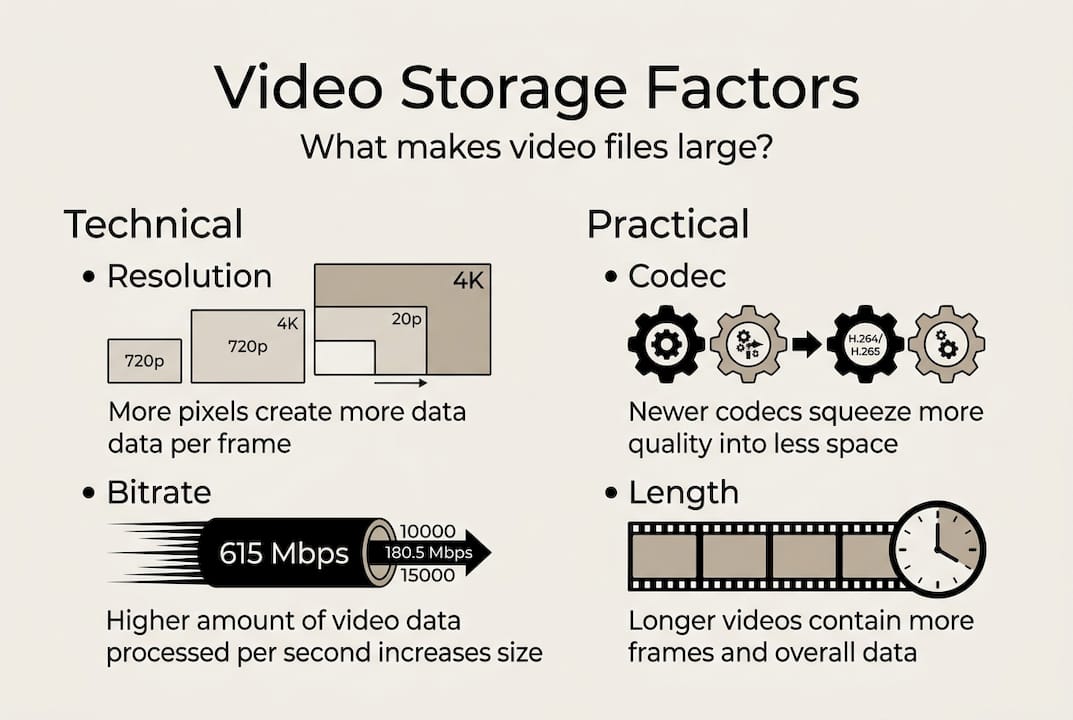
Understanding why videos are large sets the stage for a closer look at the key factors that directly impact file size. Four variables do most of the heavy lifting: resolution, frame rate, bitrate, and codec.
Bitrate is the amount of data processed per second of video, measured in megabits per second (Mbps). A higher bitrate means better quality but larger files. A 4K video at 80 Mbps will look stunning and fill your drive fast. Drop it to 15 Mbps with a smarter codec, and you can preserve most of that quality at a fraction of the size.
Source quality and codec choice have the biggest influence on file size and efficiency. H.265 (also called HEVC) is roughly twice as efficient as the older H.264 standard, meaning it delivers the same visual quality at about half the file size. That's a massive advantage for anyone storing large libraries of footage.

| Factor | Lower value | Higher value |
|---|---|---|
| Resolution | Smaller file | Larger file |
| Frame rate | Smaller file | Larger file |
| Bitrate | Smaller file | Larger file |
| Codec efficiency | H.264 (less efficient) | H.265 (more efficient) |
Following video compression best practices means matching your codec and bitrate to your actual delivery platform. Uploading a 4K 80 Mbps file to a platform that re-encodes to 1080p anyway is pure wasted storage.
For long-term archiving, HEVC storage optimization is worth exploring before you commit to a storage plan. Switching your archive format from H.264 to H.265 alone can cut your storage footprint nearly in half.
Pro Tip: Before compressing an entire project, run a test encode on a 60-second clip. Compare the output visually and check the file size. This saves hours of re-encoding if your settings aren't quite right.
Choosing the right storage: Local, cloud, or hybrid?
Once you know what drives file size, the next step is managing where all that data lives and how to optimize your setup. Each storage model has real trade-offs that matter differently depending on your workflow.
Local storage (external hard drives or NAS systems) gives you complete control, fast transfer speeds, and a one-time hardware cost. A 16 TB NAS setup can run $400 to $800 upfront, but there are no monthly fees after that. The downside is physical vulnerability: drives fail, get stolen, or get damaged in a fire.
Cloud storage scales instantly and lets you access footage from anywhere. It's ideal for remote teams and client delivery. But costs add up. Storing 10 TB on a standard cloud plan can cost $200 or more per month, which adds up to thousands annually.
Cloud storage is scalable with remote access, but local storage is cost-effective at scale, and hybrid offers redundancy. That hybrid model is what most serious creators and small businesses land on.
Storage reality check: A small video production business generating 2 TB of footage per month would spend roughly $2,400 to $3,600 per year on cloud-only storage. A hybrid setup with local NAS plus a cold-storage cloud tier can cut that by 60% or more.
| Storage type | Cost model | Best for | Risk |
|---|---|---|---|
| Local (HDD/NAS) | One-time hardware | High-volume archiving | Hardware failure |
| Cloud | Monthly subscription | Remote access, collaboration | Ongoing cost |
| Hybrid | Mixed | Redundancy and flexibility | Complexity |
For a detailed breakdown of storage strategies for creators, the right mix depends on your project volume, team size, and how often you need to access older footage. And don't overlook video file management tips for keeping your library organized as it grows.
How compression shrinks your video storage needs
Knowing your storage options is only valuable if you minimize what needs to be stored. Here's how compression makes a real difference.
Compression works by removing redundant data. In a video of someone talking against a static background, the background pixels barely change from frame to frame. A smart codec like H.265 identifies that redundancy and stores the difference rather than each full frame. This is called lossy compression, and when done correctly, the quality loss is invisible to the human eye.
Here's a simple workflow to compress video efficiently with H.265:
- Identify your delivery target. Are you archiving, uploading to YouTube, or sending to a client? Each has different quality requirements.
- Choose H.265 as your codec. It's the current standard for efficient compression.
- Set your CRF value between 20 and 25. CRF (Constant Rate Factor) controls quality. Lower numbers mean better quality and larger files. CRF settings between 20 and 25 with H.265 yield significant space savings without notable quality loss.
- Select a slower encoder preset. Slower presets take more time but produce smaller files at the same quality level.
- Run a test encode on a short clip before processing your full project.
- Archive your original master file separately before compressing. Never overwrite the source.
Real-world numbers back this up. A 10-minute 4K video encoded in H.264 at 50 Mbps runs about 3.75 GB. Re-encoded with H.265 at CRF 22, that same clip can drop to under 1.5 GB with no visible quality difference.
| Codec | CRF | 10-min 4K file size | Quality impact |
|---|---|---|---|
| H.264 | 18 | ~5.5 GB | Excellent |
| H.264 | 23 | ~3.75 GB | Very good |
| H.265 | 22 | ~1.5 GB | Very good |
| H.265 | 28 | ~0.8 GB | Good |
To master compression for your specific workflow, it helps to understand how different platforms handle re-encoding. If you shoot on a smartphone, the mobile compression guide covers device-specific settings that make a big difference. And once you're compressing regularly, a video organization checklist keeps your library from becoming a chaotic mess.
Pro Tip: Keep your original master files in a separate "RAW" folder that you never touch after compression. Label compressed versions with the codec and CRF value in the filename so you always know what you're working with.
Avoiding common mistakes in video storage and compression
It's just as critical to sidestep errors as it is to apply the right techniques. Here are the mistakes nearly everyone makes and how you can avoid them.
- Over-compressing your footage. Pushing CRF above 28 on H.265 can introduce visible artifacts, especially in fast-motion scenes. Always preview before committing.
- Skipping compatibility checks. H.265 isn't universally supported. Some older editing software, TVs, and client systems can't play it. Always confirm your delivery platform supports the codec before archiving everything in a format nobody can open.
- No backup redundancy. A single drive is not a backup. Follow the 3-2-1 rule: three copies, two different media types, one offsite.
- Compressing without testing first. Applying settings to a full project without a test clip is a gamble. One bad encode on a 2-hour event video wastes hours.
- Deleting the original master. This is the most painful mistake. Once you delete the source file, you can't recover quality lost in compression.
Slower compression presets often deliver better efficiency and smaller files, so always test on clips before applying to your full project. The time investment in a proper test encode pays off every time.
For more nuanced strategies, advanced compression tips cover two-pass encoding, variable bitrate settings, and format-specific optimizations that go beyond the basics.
Pro Tip: Use the "slow" or "veryslow" encoder preset in H.265 when archiving. It takes longer to encode, but the output file will be noticeably smaller than the "medium" preset at the same CRF value.
Take control of your video storage and compression
You now have a solid foundation for understanding what makes videos large, how to choose the right storage setup, and how to compress footage without sacrificing quality. The next step is putting those principles to work with tools built specifically for this challenge.

HEVCut is designed exactly for content creators and small business owners who need to manage growing video libraries without constantly upgrading storage plans. The platform uses advanced H.265 compression to reduce file sizes by up to 70% while keeping your footage looking sharp. You can start with a free trial and use the video size calculator to estimate exactly how much space you can reclaim before committing to anything. Whether you're managing 4K drone footage, client deliverables, or a growing content archive, HEVCut gives you the controls to work smarter with the storage you already have.
Frequently asked questions
What makes a video file bigger than a photo or audio file?
Video files combine thousands of images with synchronized audio, creating data volumes that dwarf standalone photos or audio files. Videos are much larger than photos due to higher data rates, resolution, and frame rates stacking up across every second of footage.
How can I store lots of video files without running out of space?
Use H.265 compression to reduce file sizes before archiving, and combine local storage for bulk files with cloud storage for active projects. Cloud storage is scalable with remote access, but local storage is more cost-effective at scale, making a hybrid approach the smart middle ground.
Does video compression reduce quality?
Some quality loss is possible, but it's largely invisible when done correctly. CRF settings between 20 and 25 with H.265 deliver significant file size reductions with almost no perceptible quality difference.
Is cloud storage safe for business videos?
Leading cloud providers offer strong security and easy remote access, but relying on a single cloud account is still a risk. Pairing cloud storage with a local backup follows the redundancy best practices that protect your footage from both data loss and account issues.
What's the easiest way to calculate my video storage needs?
Online tools like the HEVCut video size calculator let you input your resolution, frame rate, codec, and duration to get an accurate storage estimate before you shoot or archive.