
Managing high-resolution mobile videos creates serious storage and bandwidth challenges for content creators and small businesses. Every 4K recording from your smartphone eats precious gigabytes, forcing expensive cloud upgrades or constant file deletion. Efficient compression reduces file sizes by 50% or more while maintaining visual quality, letting you keep more content without sacrificing what matters. This guide covers proven methods, practical tools, and best practices for mobile video compression that actually work in 2026.
Table of Contents
- Understanding mobile video compression methods
- Essential tools and preparation for compressing mobile videos
- Step-by-step guide to compressing your mobile videos efficiently
- Verifying and troubleshooting compressed videos on mobile
- Explore HEVCut's mobile video compression tools
- Frequently asked questions about mobile video compression
Key takeaways
| Point | Details |
|---|---|
| Codec efficiency | HEVC reduces file sizes by around 50% compared to H.264 without quality loss |
| Tool selection | Device-native tools work for quick tasks while FFmpeg and HandBrake handle advanced batch compression |
| Neural compression | Machine learning codecs promise future gains but currently require specific hardware support |
| Quality verification | Always check compressed videos for audio sync, edge sharpness, and playback smoothness before final use |
| Common pitfalls | Avoid forced framerate changes and metadata stripping to preserve video integrity and device compatibility |
Understanding mobile video compression methods
Video compression reduces file sizes by removing redundant information between frames and within each frame. Traditional codecs like H.264/AVC dominated mobile video for years, but newer standards deliver far better efficiency. HEVC (H.265) provides around 50% better compression than H.264 at equivalent quality, making it the practical choice for most creators in 2026. AV1 offers similar gains but faces slower encoding speeds on mobile devices.
These codecs work through frame prediction, motion compensation, and entropy coding. Frame prediction analyzes how pixels change between frames, storing only the differences rather than complete images. Motion compensation tracks moving objects across frames, further reducing data redundancy. Entropy coding then compresses the remaining information using statistical patterns.
Neural video compression represents the cutting edge. Machine learning models like DCVC-RT and MobileNVC analyze video content to achieve even better compression ratios. Neural Video Compression saves 21% bitrate versus H.266/VTM for 1080p content. However, these codecs demand significant processing power and specialized hardware acceleration, limiting practical mobile use today.
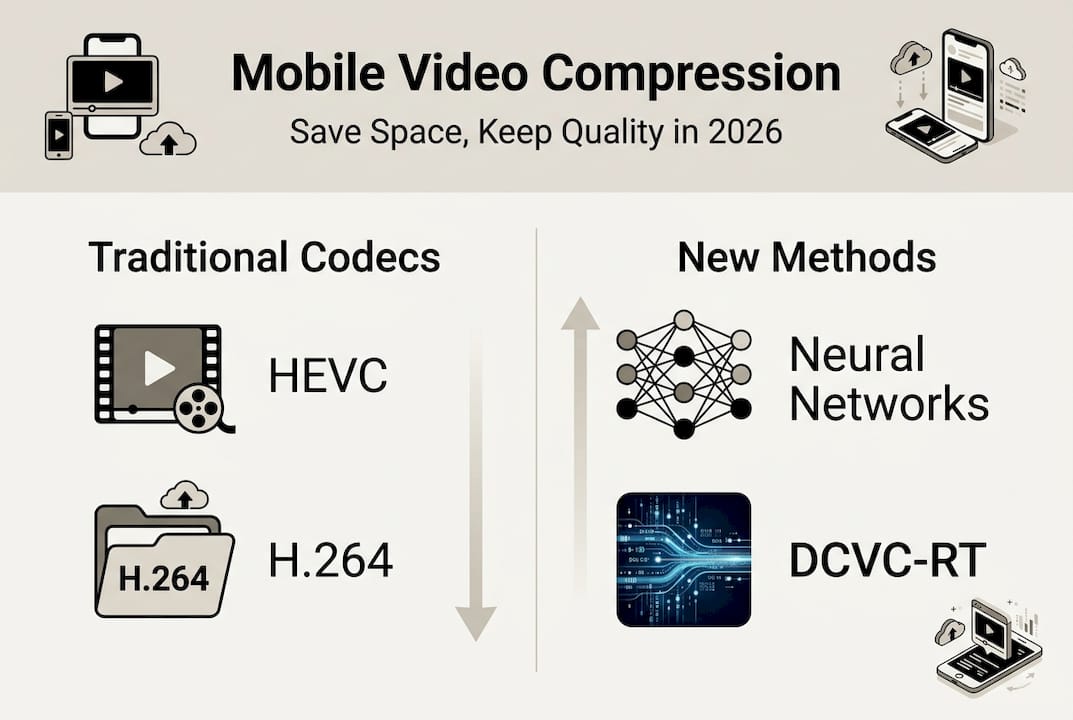
The choice between codecs depends on your specific needs and device capabilities. HEVC strikes the best balance between compression efficiency, encoding speed, and device compatibility for mobile workflows. AV1 works well for web delivery but encodes slowly on phones. Neural codecs remain experimental for most business applications.
Codec comparison:
| Codec | Compression Efficiency | Device Support | Encoding Speed | Best Use Case |
|---|---|---|---|---|
| H.264/AVC | Baseline | Universal | Fast | Legacy compatibility |
| HEVC/H.265 | 50% better than H.264 | Wide (2015+) | Moderate | Mobile storage optimization |
| AV1 | Similar to HEVC | Growing | Slow | Web streaming |
| Neural (NVC) | 20%+ better than HEVC | Limited | Very slow | Research/future applications |
Pro Tip: Prioritize HEVC for mobile compression if your devices support it. The format delivers excellent storage savings with broad compatibility across iPhones from 2015 onward and Android devices from 2017 onward. You can optimize 4K and HDR storage using HEVC without specialized hardware.
Essential tools and preparation for compressing mobile videos
Selecting the right compression tool determines how efficiently you process videos and what quality you achieve. Native mobile tools provide the fastest path for occasional compression. iOS users can leverage Shortcuts or iMovie for quick file size reduction. Android users have Gallery apps with built-in compression features. These tools work great for single videos but lack batch processing capabilities.

Built-in iOS Shortcuts, Android Gallery apps, VidCompact, FFmpeg, and HandBrake serve different compression needs effectively. VidCompact offers smartphone users a dedicated compression app with preset quality levels. Desktop tools like FFmpeg provide command-line control for batch operations and custom encoding parameters. HandBrake delivers a user-friendly graphical interface for detailed compression settings without coding knowledge.
Preparing your videos before compression ensures optimal results. Record videos in HEVC format when possible to start with efficient encoding. Choose 1080p resolution at 30fps for most content, balancing quality against file size. Higher framerates like 60fps double file sizes with minimal visual benefit for typical content. Reserve 4K recording for situations where you truly need maximum detail.
Hardware acceleration dramatically speeds encoding times. Modern iPhones and Android devices include dedicated video encoding chips that process HEVC 10 times faster than software encoding. Enable hardware acceleration in your compression tool settings to reduce processing time from minutes to seconds. Desktop tools like HandBrake automatically detect and use hardware encoders when available.
Preparation checklist:
- Verify your device supports HEVC encoding and playback
- Choose recording settings that match your actual quality needs
- Enable hardware acceleration in compression tool settings
- Test compression settings on sample videos before batch processing
- Maintain original video backups until verifying compressed quality
Pro Tip: Use CRF (Constant Rate Factor) values between 23 and 28 for consistent quality with good compression. CRF 23 produces visually lossless results for most content. CRF 28 creates smaller files with barely noticeable quality reduction. This approach beats fixed bitrate encoding by adapting compression to scene complexity. Learn how to choose HEVC or H.264 based on your specific content requirements.
Step-by-step guide to compressing your mobile videos efficiently
Compressing mobile videos effectively requires following a systematic process that maintains quality while achieving significant file size reduction. This tutorial walks through each critical step with specific settings and verification methods.
-
Choose your compression tool based on workflow needs. Use native mobile apps for quick single-video compression on the go. Select VidCompact for smartphone batch processing with preset quality levels. Pick HandBrake for desktop work requiring custom settings. Choose FFmpeg for automated batch operations via command line.
-
Select codec and quality settings for optimal results. Prefer HEVC if device compatibility allows for 50% file size reduction. Set CRF between 23 and 28, with 25 as the sweet spot for most content. Choose medium or slow preset for better compression efficiency. Avoid ultrafast presets that sacrifice compression ratio for speed.
-
Adjust resolution and framerate carefully to prevent artifacts. Maintain original resolution unless specifically downsizing for web delivery. Keep original framerate to avoid motion judder and sync issues. Only reduce framerate when converting high-speed footage to standard playback. Never force framerate conversions like 30fps to 24fps without understanding the visual impact.
-
Compress video and review output for quality issues. Start compression and monitor progress for errors or warnings. Apps like VidCompact reduce 1080p videos by up to 73% without noticeable quality loss. Check file size reduction percentage against expected results. Immediately review compressed video before deleting originals.
-
Save and backup compressed videos with proper organization. Export compressed videos to dedicated folders separated from originals. Maintain original files until confirming compressed quality meets standards. Tag compressed files with codec and quality settings for future reference. Update your media library metadata to reflect compression details.
Expected compression results:
| Original Format | Compressed Format | File Size Reduction | Quality Impact | Encoding Time (1 min video) |
|---|---|---|---|---|
| H.264 1080p/30fps | HEVC CRF 23 | 45-55% | Visually lossless | 30-45 seconds |
| H.264 1080p/60fps | HEVC CRF 25 | 50-60% | Minimal | 45-60 seconds |
| H.264 4K/30fps | HEVC CRF 25 | 55-65% | Minimal | 2-3 minutes |
| HEVC 1080p/30fps | HEVC CRF 28 | 20-30% | Slight softening | 25-35 seconds |
Pro Tip: Avoid forcing framerate conversions that create judder and aspect ratio distortion. Converting 30fps to 24fps drops frames unevenly, causing visible stuttering in motion. Similarly, changing aspect ratios from 16:9 to 4:3 stretches or crops your content. Maintain original temporal and spatial properties unless you have specific delivery requirements. Follow video compression best practices to optimize both quality and storage efficiency.
Verifying and troubleshooting compressed videos on mobile
Quality verification prevents discovering compression problems after deleting original files. Systematic checking catches issues early when you can still adjust settings and recompress. Always verify compressed videos by scrubbing to 75% progress, checking audio/video sync and edge sharpness around text or faces.
Playback testing reveals motion smoothness and audio synchronization. Scrub through the entire video rather than watching passively. Jump to different timestamps to check for stuttering or freezing. Play sections with dialogue to verify audio matches lip movements. Test on multiple devices to confirm compatibility across your target platforms.
Visual inspection identifies compression artifacts that reduce perceived quality. Look for blurring around text overlays or sharp edges, indicating excessive chroma subsampling. Check for blockiness in gradients like skies or walls, suggesting too aggressive compression. Examine fast-motion scenes for mosquito noise or temporal artifacts. Compare side-by-side with original footage in critical areas.
Metadata preservation ensures compressed videos maintain compatibility and organization. Some compression tools strip metadata like creation date, location, and camera settings. This causes sorting problems in photo libraries and removes valuable context. Verify your tool preserves or copies metadata from source files. Use dedicated apps to restore metadata if your compression tool removes it.
Common compression issues:
- Judder from forced framerate changes creates uneven motion
- Aspect ratio mismatch stretches or crops content incorrectly
- Device fallback to software decoding drains battery rapidly
- Audio desynchronization from improper stream handling
- Color banding in gradients from excessive bitrate reduction
- Metadata loss breaking photo library organization
Warning: Forced framerate conversions and aggressive compression settings create irreversible quality problems. Converting 60fps to 30fps by dropping frames causes visible judder in smooth motion. Older devices without HEVC hardware support fall back to slow software decoding, causing poor playback performance and battery drain. Always test compressed videos on your oldest target device before committing to settings.
Troubleshooting requires identifying whether issues stem from encoding settings or device limitations. Recompress with higher CRF values if you see blockiness or banding. Switch to H.264 if HEVC causes playback problems on older devices. Increase encoding preset from fast to medium for better compression efficiency. Disable hardware acceleration if you encounter encoding errors or corrupted output. Explore advanced video compression in 2026 techniques for handling challenging content types.
Explore HEVCut's mobile video compression tools
Managing video storage becomes effortless when you have the right tools designed specifically for your workflow. HEVCut offers a video compressor for iPhone and Mac optimized for content creators who need reliable compression without quality compromise. The platform leverages HEVC encoding to deliver file size reductions up to 70% while maintaining visual fidelity across 4K and HDR content.

Planning storage needs before compression helps you make informed decisions about quality settings and codec selection. HEVCut's video file size calculator lets you estimate compressed file sizes based on resolution, framerate, and quality parameters. This tool eliminates guesswork when budgeting storage for large video libraries or planning cloud backup strategies. Combine compression and storage planning to build efficient video management workflows that scale with your business growth.
Frequently asked questions about mobile video compression
What is the best codec for mobile video compression in 2026?
HEVC (H.265) remains the best codec for mobile video compression in 2026, delivering 50% file size reduction compared to H.264 with equivalent visual quality. It offers broad device support across iPhones from 2015 onward and most Android phones from 2017 onward. AV1 provides similar compression efficiency but encodes much slower on mobile devices, making it less practical for everyday use.
How can I compress videos on my phone without quality loss?
Use your phone's native compression tools or dedicated apps like VidCompact with HEVC encoding and CRF values between 23 and 25. Enable hardware acceleration to speed processing while maintaining quality. Always verify compressed output by checking audio sync and edge sharpness before deleting original files. Avoid reducing resolution or framerate unless specifically needed for delivery requirements.
Why do compressed videos sometimes have sync or quality issues?
Sync problems typically result from improper audio stream handling during compression or forced framerate conversions that drop frames unevenly. Quality issues stem from excessive compression settings, chroma subsampling artifacts, or metadata stripping. Some tools apply overly aggressive defaults that prioritize file size over visual fidelity. Always test compression settings on sample videos before processing entire libraries.
Is neural video compression practical for my business?
Neural video compression remains experimental for most business applications in 2026 due to limited hardware support and slow encoding speeds. While neural codecs like DCVC-RT offer 20% better compression than HEVC, they require specialized processing hardware not available in standard mobile devices. Stick with HEVC for reliable, practical compression until neural codecs gain broader hardware acceleration support.
What settings should I use for optimal compression?
Use HEVC codec with CRF 25, medium preset, and maintain original resolution and framerate for optimal results. Enable hardware acceleration to reduce encoding time. These settings typically achieve 50-60% file size reduction with minimal quality impact. Adjust CRF to 23 for visually lossless quality or 28 for smaller files with slight softening. Test settings on representative content before batch processing your entire library.