
You might be surprised to learn that H.265 offers up to 50% bitrate reduction at the same quality, meaning much smaller files without loss. Many creators and small businesses overpay for storage because their videos aren't compressed efficiently. The good news? Compression doesn't have to mean visible quality loss. This guide will show why and how compression cuts storage needs and costs, helping you keep more money in your pocket while maintaining the professional quality your audience expects.
Table of Contents
- Storage challenges with high-resolution video
- Compression basics: What changes when you compress?
- How much space can you actually save? (A real comparison))
- Cost benefits: Beyond just saving space
- When and how to compress: Practical strategies
- Turn knowledge into savings: Easy tools for video compression
- Frequently asked questions
Key Takeaways
| Point | Details |
|---|---|
| Compression halves storage needs | Modern codecs like H.265 reduce video file sizes by up to 50% without losing visual quality. |
| Lower storage equals lower costs | By compressing before uploading or archiving, you avoid overpaying for cloud or server storage. |
| Better workflows and backups | Smaller files upload, download, and back up faster, saving creators and businesses time. |
| Easy tools for everyone | Free calculators and compression guides make it simple to start saving space and money immediately. |
Storage challenges with high-resolution video
Every content creator knows the pain of watching storage costs climb month after month. High-resolution video files can be massive, leading to fast-growing storage costs that eat into your budget. A single 10-minute 4K video can consume 10GB or more of space, and when you're producing content regularly, those gigabytes add up faster than you might expect.
Cloud storage costs scale directly with file size. What starts as a reasonable monthly fee quickly balloons into a significant expense as your video library grows. Managing large raw files is slow and inefficient, creating bottlenecks in your workflow that waste valuable time. Storage overages can create unexpected expenses that throw off your entire budget planning.
Consider these common pain points:
- 4K video files take up 4x more space than 1080p HD content
- 8K footage requires exponentially more storage than 4K
- Raw video files from professional cameras can exceed 100GB per hour
- Cloud backup services charge premium rates for large file transfers
- Editing software struggles with massive file sizes, slowing down your workflow
Pro Tip: Track your monthly storage costs for three months to see exactly how much you're spending. Most creators are shocked to discover they're paying 2-3x more than necessary simply because their videos aren't compressed efficiently.
The reality is that without proper advanced video compression, you're essentially paying a premium for storing redundant data. Every uncompressed video contains information that could be removed without affecting what viewers see. Understanding why large video files create such significant problems is the first step toward solving your storage challenges.
Compression basics: What changes when you compress?
Video compression might sound technical, but the concept is straightforward. When you compress a video, the software removes redundant data, reuses pixels across frames, and encodes information more efficiently. Think of it like packing a suitcase: you're fitting the same items into less space by organizing them better.
H.265 uses advanced encoding methods for better results than older codecs. Modern codecs like H.265 enable high efficiency with minimal noticeable quality loss. Most visual quality is preserved when using proper compression settings, which means your audience won't see any difference while you enjoy massive storage savings.
Here's what happens during compression:
- Frame analysis: The codec examines each frame to identify which pixels change between frames
- Data reduction: Instead of storing every pixel in every frame, it stores only the changes
- Efficient encoding: Mathematical algorithms compress the remaining data using advanced techniques
- Quality preservation: Smart algorithms ensure that important visual details remain intact
Pro Tip: The key to successful compression is choosing the right settings for your content type. Action-heavy videos need different settings than talking-head content, but modern tools can automatically optimize these parameters for you.
Many creators worry that compression will ruin their video quality, but this fear is based on outdated information. Old compression methods from the early 2000s did cause visible quality loss, but modern codecs have evolved dramatically. Following compression best practices ensures you get maximum space savings while maintaining professional quality standards.

How much space can you actually save? (A real comparison)
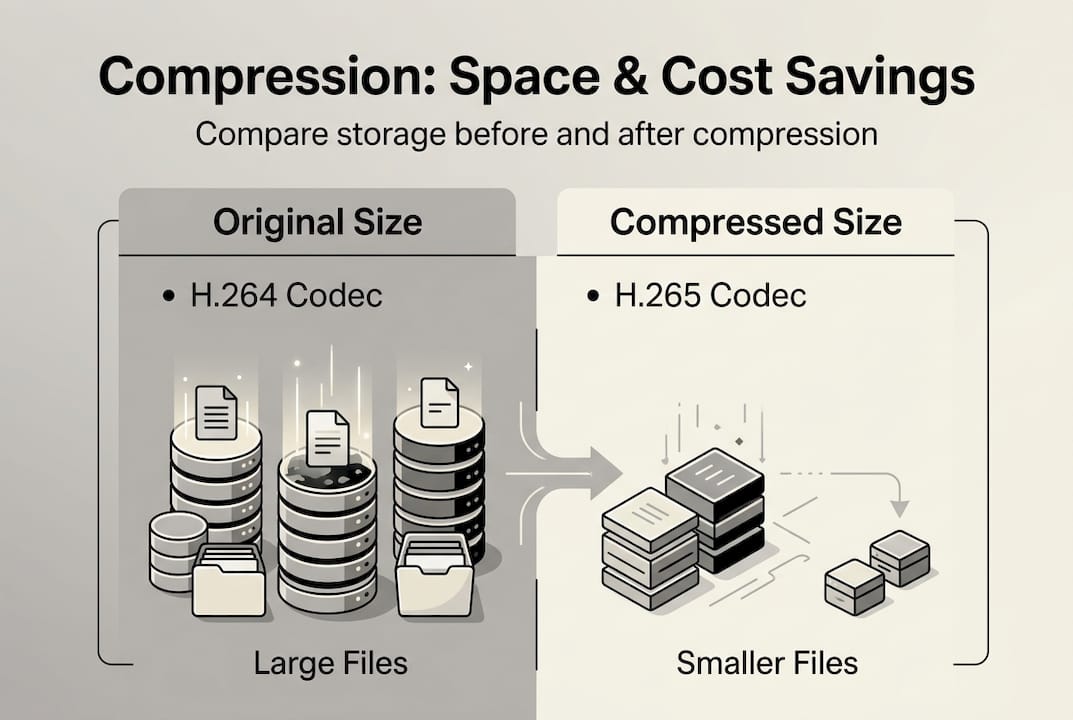
Let's move from theory to concrete numbers. H.265 typically achieves 50% storage reduction compared to H.264 with equal quality. Here's what that looks like in practice:
| Video Length | Resolution | Original Size (H.264) | Compressed Size (H.265) | Space Saved |
|---|---|---|---|---|
| 10 minutes | 1080p | 2.5 GB | 1.25 GB | 50% |
| 10 minutes | 4K | 10 GB | 5 GB | 50% |
| 1 hour | 1080p | 15 GB | 7.5 GB | 50% |
| 1 hour | 4K | 60 GB | 30 GB | 50% |
These aren't theoretical numbers. They represent real-world results that content creators achieve daily. If you produce just two hours of 4K content per week, that's 240GB per month in original files. With compression, you're storing only 120GB, saving 120GB monthly. Over a year, that's 1.44TB of storage space you don't need to pay for.
The cost implications are significant. Most cloud storage services charge around $10 per 100GB monthly. Without compression, storing 240GB costs $24 per month. With compression, you're paying only $12 per month. That's $144 in annual savings from a single workflow change.
Real-world example: A small business producing weekly video content reduced their annual storage costs from $2,880 to $1,440 by implementing H.265 compression. They invested zero dollars in new equipment and saw immediate results.
These savings compound over time. As your video library grows, the difference between compressed and uncompressed storage becomes increasingly dramatic. Learning to cut video costs through compression is one of the highest-return investments you can make in your content workflow. Even mobile video compression delivers substantial benefits for smartphone creators.
Cost benefits: Beyond just saving space
Storage savings are just the beginning. Reducing file size also reduces costs associated with transfer, backup, and editing speed. The ripple effects of compression touch every part of your video workflow, creating efficiency gains that translate directly to time and money saved.
Consider these additional benefits:
- Lower cloud storage bills: Pay for half the storage capacity you currently need
- Cheaper and faster backups: Smaller files mean faster backup times and lower bandwidth costs
- Faster upload and download speeds: Share videos with clients or team members in half the time
- Less lag in video editing workflows: Smaller files mean smoother playback and faster rendering
Pro Tip: Calculate your total video-related costs, including storage, bandwidth, and time spent waiting for uploads. Most creators find that compression saves them 3-5 hours per month in addition to direct cost savings.
The time savings deserve special attention. When your files are 50% smaller, uploads that previously took 30 minutes now take 15 minutes. Downloads are twice as fast. Backup processes complete in half the time. These minutes add up to hours every month, hours you can spend creating content instead of watching progress bars.
"We cut our monthly storage costs by 52% and reduced our backup time from 4 hours to under 2 hours. The ROI was immediate and continues to compound as our library grows." — Content creator managing 500+ videos
Bandwidth costs also decrease significantly. If you're sharing videos with clients, collaborators, or team members, smaller files mean lower transfer costs. Some cloud services charge for bandwidth usage, and cutting your file sizes in half directly reduces these charges. Implementing storage cost-saving tips and focusing on storage optimization creates a more sustainable, scalable content business.
When and how to compress: Practical strategies
Timing and technique matter when compressing videos. Choosing the right compression settings is key for balancing quality and space. Follow these steps to maximize your results:
- Complete all editing first: Never compress your working files. Keep originals in high quality until editing is finished.
- Choose H.265 as your codec: This modern standard offers the best balance of quality and compression.
- Set appropriate bitrate: Higher bitrates preserve more quality but create larger files. Start with recommended settings for your resolution.
- Compress before uploading or archiving: This is the ideal moment to reduce file size.
- Verify quality: Always check the compressed version before deleting originals.
Here's a practical settings guide:
| Resolution | Recommended Bitrate | Expected File Size (10 min) |
|---|---|---|
| 1080p | 5-8 Mbps | 375-600 MB |
| 4K | 15-25 Mbps | 1.1-1.9 GB |
| 8K | 50-80 Mbps | 3.75-6 GB |
Tools and services that automate compression make the process effortless. Modern platforms can batch-process entire folders of videos overnight, applying optimal settings automatically. You don't need to become a compression expert to benefit from these technologies.
Pro Tip: Create a compression workflow that runs automatically. Set up a folder where you drop finished videos, and let software compress them overnight while you sleep. Wake up to optimized files ready for upload or archiving.
How to check quality before and after compression: Watch both versions on your largest screen at full resolution. Look for artifacts around edges, color banding in gradients, or blur in detailed areas. If you can't spot differences, your settings are perfect. Mastering advanced video compression and implementing smart video storage strategies ensures long-term success.
Turn knowledge into savings: Easy tools for video compression
As you plan your next video project, these free tools can be a game-changer. Understanding compression theory is valuable, but having practical tools that calculate exact file sizes and optimal bitrates transforms that knowledge into immediate savings.
The video size calculator helps you predict exactly how much storage space your videos will require before you even start recording. Input your planned video length, resolution, and codec, and instantly see the expected file size. This planning tool prevents storage surprises and helps you budget accurately for your content production needs.

The bitrate calculator takes the guesswork out of compression settings. Enter your target file size and video specifications, and it recommends the optimal bitrate to achieve your goals while maintaining quality. These calculators work together to give you complete control over your video storage strategy.
Making a small change today can lead to substantial long-term storage savings. Every video you compress using optimal settings contributes to lower costs and more efficient workflows. The HEVCut tools platform combines these calculators with automated compression services, giving you everything needed to implement a professional video storage strategy. Start with the free calculators to see potential savings, then explore automated compression to make those savings effortless and consistent.
Frequently asked questions
Does compressing video always lower its quality?
No, modern codecs like H.265 can reduce file size by 50% with no visible quality loss if set up properly. The key is using appropriate settings for your content type and resolution.
How much can I reduce video storage costs by compressing?
You can typically cut storage usage and costs by 50% or more using efficient compression like H.265. This translates to hundreds or thousands of dollars in annual savings depending on your video volume.
When should I compress my videos for best results?
Compress videos after editing but before uploading or archiving to maximize space and quality. Never compress your working files, as this limits your editing flexibility.
Is H.265 supported by most platforms and devices?
Yes, most modern devices, streaming services, and editing tools support H.265. Compatibility has improved dramatically since 2020, making it the standard choice for efficient video storage.
What happens if I compress a video twice?
Compressing an already compressed video typically provides minimal additional space savings and may introduce quality degradation. Always compress from your highest-quality source file for best results.