
Choosing the right compression method can cut your video storage by over 50% compared to older formats, yet most creators keep uploading raw footage and wondering why their devices and cloud plans are always full. If you shoot 4K content regularly, a single hour of uncompressed video can eat 50GB or more. That's a real problem for content creators and small businesses managing large media libraries. This article breaks down how mobile video compression actually works, which codecs give you the best results, and how to build a smarter workflow that saves storage without sacrificing the quality your audience expects.
Table of Contents
- What is mobile video compression?
- How does mobile video compression work?
- Which codec should you use? H.264, HEVC, or AV1
- Advanced compression: Neural video and AI-powered methods
- Practical tips to compress mobile videos effectively
- Optimize your videos with HEVCut's tools
- Frequently asked questions
Key Takeaways
| Point | Details |
|---|---|
| Better codecs, less storage | Switching from H.264 to HEVC or AV1 can cut your video file sizes by 30-50% without losing quality. |
| Device support is key | Choose H.264 for widest compatibility, HEVC for efficiency on modern devices, and AV1 for VOD or long-term storage. |
| AI is the future | Neural video codecs promise even smaller files, but device support is still emerging. |
| Practical workflow matters | Test settings and keep backups to avoid costly mistakes when compressing important media. |
What is mobile video compression?
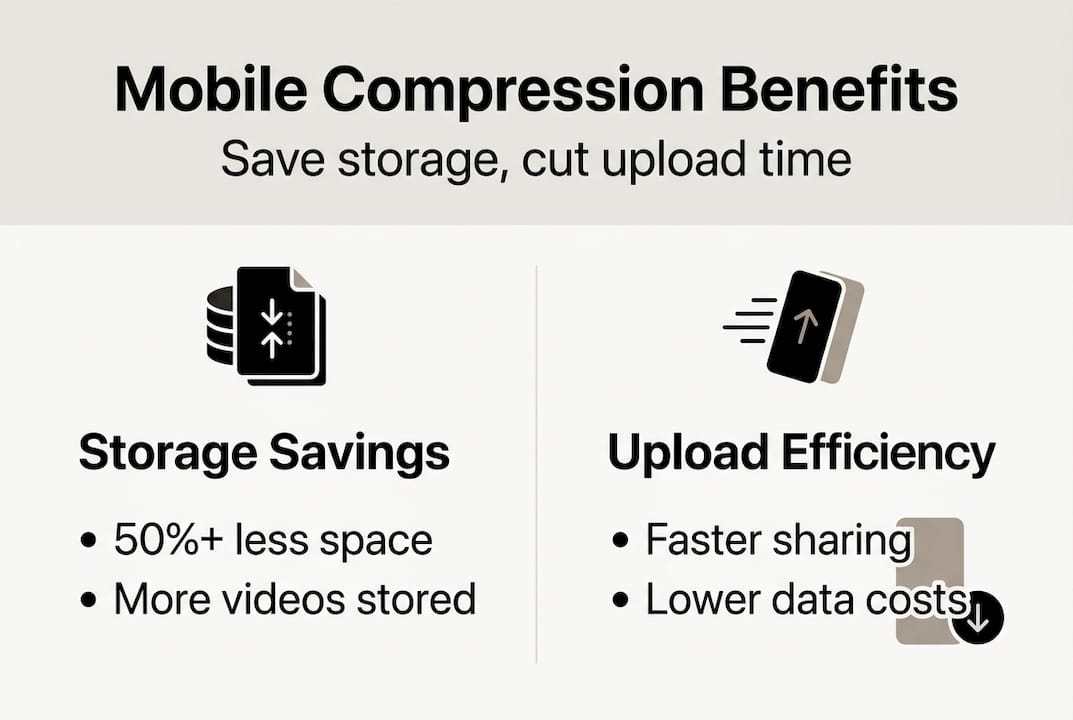
Video compression is the process of reducing a video file's size by removing data the human eye can't easily detect. For mobile creators and small businesses, this matters enormously. Smaller files mean more videos fit on your device, uploads finish faster, and cloud storage costs stay manageable.
The core tools behind compression are called codecs, short for coder/decoder. The three you'll encounter most are:
- H.264 (AVC): The most widely supported codec. Works on virtually every device and platform.
- HEVC (H.265): Roughly twice as efficient as H.264. Ideal for 4K and HDR content. Learn more about how to optimize 4K and HDR storage with HEVC.
- AV1: The newest major codec. Open-source and royalty-free, with excellent compression ratios for video on demand.
Mobile compression relies on hybrid block-based codecs that blend spatial encoding (within a single frame) and temporal encoding (across multiple frames). Understanding the difference between these approaches is what separates smart compression from just shrinking a file and hoping for the best. You can also explore what online video compressors look for when applying these codecs automatically.
Pro Tip: Compression also reduces mobile data costs and upload times significantly. A video compressed with HEVC can upload in half the time of its H.264 equivalent at the same visual quality.
How does mobile video compression work?
Now that you know what video compression is, let's look at exactly how mobile codecs shrink gigantic video files while keeping them watchable.
Every video is made up of frames, and each frame contains pixels. Codecs exploit two types of redundancy to reduce file size:
- Intra-frame prediction: Looks for repeated patterns within a single frame. A blue sky background, for example, doesn't need to store every pixel individually.
- Block splitting: Divides each frame into small blocks for analysis.
- DCT (Discrete Cosine Transform): Converts pixel data into frequency information, making it easier to discard what the eye won't notice.
- Quantization: Reduces the precision of frequency data, which is where most of the actual size reduction happens.
- Entropy coding: Applies lossless compression to the quantized data as a final step.
Inter-frame prediction works across frames. If your subject barely moves between two frames, the codec only stores the difference, not a full new frame. This is why H.264, HEVC, and AV1 can produce small, high-quality files even for long videos.

Here's how the three main codecs compare:
| Codec | Compression ratio vs H.264 | Typical bitrate (1080p) | Device support |
|---|---|---|---|
| H.264 | Baseline | 4 to 8 Mbps | Universal |
| HEVC (H.265) | 30 to 50% smaller | 2 to 4 Mbps | Most modern devices |
| AV1 | 50 to 60% smaller | 1.5 to 3 Mbps | Growing rapidly |
For a deeper look at how these codecs handle real-world footage, the video compression best practices guide covers quality settings and bitrate ladders in detail.
Pro Tip: Frequent scene changes, fast motion, and high-contrast visuals all make compression harder. If you're shooting action content, use a slightly higher bitrate to avoid blocky artifacts in motion-heavy sequences.
Which codec should you use? H.264, HEVC, or AV1
Understanding how codecs work sets you up to pick the best one for your workflow. So which should you actually use, and when?
HEVC offers 30 to 50% smaller files than H.264 at the same quality, while AV1 pushes savings even further but encodes more slowly. Here's a quick breakdown:
H.264
- Pros: Works everywhere, fast encoding, broad editing software support
- Cons: Largest file sizes, least efficient for 4K
- Best for: Social media uploads, live streaming, maximum compatibility
HEVC (H.265)
- Pros: Excellent quality at half the bitrate, native support on iPhone and most Android flagships
- Cons: Some older platforms don't support playback
- Best for: 4K recording, HDR content, archiving. See how using HEVC for 4K changes your storage math.
AV1
- Pros: Best compression ratios, royalty-free, growing hardware support
- Cons: Slow software encoding, not yet universal on mobile cameras
- Best for: Video on demand, YouTube uploads, future-proofing your library
AV1 provides 20 to 30% additional savings over HEVC, but encoding is slower and device support is still expanding. For most creators in 2026, HEVC is the practical sweet spot.
For live streaming, H.264 remains the safest choice because of its universal decoder support. For stored content and VOD, HEVC for 4K/HDR is the clear winner in balancing quality and file size. If you're unsure which fits your content type, the guide on how to choose HEVC or H.264 walks through the decision step by step.
Advanced compression: Neural video and AI-powered methods
Once you know the main industry codecs, you might wonder about newer, AI-powered methods and whether they're worth your attention. Here's the cutting edge.
Neural video compression (NVC) replaces traditional block-based processing with machine learning models that analyze entire scenes. Instead of treating every frame the same way, NVC identifies which regions matter most visually and allocates more data there. The result is 30 to 50% further bitrate reduction over traditional codecs like HEVC, using AI-based scene analysis.
Here's what that means in practice:
Advantages of neural video compression:
- Adapts to content type automatically (faces, motion, backgrounds)
- Achieves smaller files at equivalent or better perceptual quality
- Recent models outperform state-of-the-art block codecs by over 10% on standard benchmarks
Current limitations:
- High computational demand, requiring powerful hardware or cloud processing
- Not yet compatible with standard video players without special decoders
- Limited commercial availability on mobile devices
Researchers are working on unified neural codecs that could eventually replace traditional standards entirely. For now, NVC is most relevant for businesses processing large video libraries in the cloud, not for everyday mobile recording. Keep an eye on advanced compression methods as this space moves fast.
Practical tips to compress mobile videos effectively
Now that you know the theory and the tech, it's time to put it into practice. Here are the practical steps and pro tips for compressing your videos with success.
- Assess your original format. Check what codec your phone records in by default. iPhones record in HEVC by default since iOS 11. Many Android devices still default to H.264.
- Choose your target codec. For most creators, HEVC is the right call. For maximum compatibility, stick with H.264. For VOD libraries, consider AV1.
- Select the right tool. Compress with HEVC using apps such as HandBrake for desktop, or use a browser-based platform for quick batch jobs.
- Test your settings before committing. Compress a 30-second clip first. Watch it on the device where your audience will view it. Check for blurry text, color shifts, or blocky motion in fast scenes.
- Set up a batch workflow. Small businesses managing multiple videos weekly should automate compression as part of their upload process, not treat it as an afterthought.
Pro Tip: Always save a master copy in the original, higher-quality format before compressing. Compression is a one-way process. You can always re-compress from the master, but you can't recover quality from an over-compressed file.
Over-compression is a real risk. Watch for these warning signs: text in your video looks blurry or pixelated, skin tones shift or look unnatural, and fast motion breaks into visible blocks. If you see any of these, raise your bitrate slightly. For a full breakdown of how to cut video costs without hurting quality, the linked guide covers bitrate targets for every common use case.
Optimize your videos with HEVCut's tools
If you're ready to stop guessing and start compressing with confidence, HEVCut was built exactly for this. The platform supports both HEVC and AV1 compression with a clean, no-setup interface that works for individual creators and small business teams alike.

Before you upload your next batch of videos, use the video size calculator to estimate exactly how much storage you'll save at different codec and quality settings. Then run your files through the video compressor to apply HEVC compression in minutes, with up to 70% file size reduction and no visible quality loss. It's the fastest way to free up storage, cut cloud costs, and keep your media library manageable.
Frequently asked questions
What is the best codec for mobile video compression in 2026?
HEVC offers the best balance of efficiency and device compatibility for most creators right now. AV1 excels for VOD and future-proofing your library as hardware support continues to grow.
Will compressing video affect its quality?
Compression always reduces file size and may slightly reduce quality, but modern codecs minimize visible loss. Block-based codecs remove redundancy for smaller files with minimal perceptual impact when settings are chosen carefully.
Do all mobile devices support HEVC or AV1 compression?
Most recent smartphones support HEVC for both recording and playback. AV1 support is expanding but not yet universal, especially for in-camera recording. Check your device's codec support before committing to a workflow.
Is neural video compression available on most mobile devices?
Not yet. NVC remains limited in commercial, cross-device use and requires significant processing power. It's an emerging technology with strong potential but isn't a practical option for everyday mobile video compression in 2026.