
TL;DR:
- Media storage costs include hardware, subscription fees, redundancy, and retrieval expenses.
- High-resolution footage and backups significantly increase storage costs for content creators.
- Organized, automated workflows and file compression can greatly reduce ongoing storage expenses.
You open your cloud storage bill and it's doubled overnight. No warning, no obvious reason. For small businesses and content creators working with 4K or HDR footage, this is a common and frustrating reality. Media storage cost is the total money you spend to store, protect, and access your video files, covering everything from cloud subscriptions to hard drives to bandwidth fees. Understanding what drives that number is the first step to controlling it. This guide breaks down exactly where your money goes, compares your storage options side by side, and gives you a practical framework to forecast and reduce your costs without sacrificing video quality.
Table of Contents
- What is media storage cost?
- The main drivers of video storage expenses
- Local, external, and cloud: comparing your storage options
- How to estimate and reduce your media storage costs
- Smart workflows for ongoing video storage savings
- Why most creators overspend on storage: a hard-won lesson
- Cut your video storage costs with HEVCut tools
- Frequently asked questions
Key Takeaways
| Point | Details |
|---|---|
| Cost drivers clarified | Resolution, file size, and access frequency are the main factors that push storage bills higher. |
| Choose storage wisely | Compare local, external, and cloud options to find the best value for your workflow and budget. |
| Compression saves money | Modern video compression can cut your storage needs and costs dramatically with no loss in quality. |
| Workflow matters | Regular reviews and automation help control storage expenses and prevent accidental overspending. |
What is media storage cost?
Media storage cost is not just the price tag on a hard drive or a monthly cloud plan. It is the full picture: hardware, subscription fees, backup redundancy, and sometimes the cost of retrieving or transferring your files. For video creators and small businesses handling large files, that total can grow fast and quietly.
The key components that make up your media storage cost include:
- Price per GB: What you pay for each gigabyte of space, whether on a local drive or in the cloud
- Access frequency: How often you pull files from storage, since some cloud tiers charge per retrieval
- Redundancy and backups: The cost of keeping multiple copies for safety
- Region and location: Cloud pricing varies by data center location, sometimes significantly
- Maintenance: For local hardware, this includes power, cooling, and eventual drive replacement
To make this concrete, consider two scenarios. A videographer storing 5 TB of 4K footage on a local NAS (network-attached storage) device might pay around $300 to $500 upfront, with minimal monthly costs. That same 5 TB on a standard cloud plan could run $100 or more per month, depending on access frequency and egress fees.
| Storage type | Avg. monthly cost (5 TB) | Upfront cost | Scalability |
|---|---|---|---|
| Local hard drive | $0 (after purchase) | $100 to $200 | Low |
| External NAS/RAID | $5 to $15 (power) | $300 to $600 | Medium |
| Cloud (standard tier) | $100 to $150 | $0 | High |
| Cloud (archive tier) | $15 to $30 | $0 | High |
The gap between local and cloud is significant. Understanding total storage costs means looking beyond the sticker price to include every recurring fee attached to keeping your files alive and accessible.
The main drivers of video storage expenses
Not all video files are created equal, and neither are the bills they generate. A few key variables push media storage spending higher faster than most creators expect.
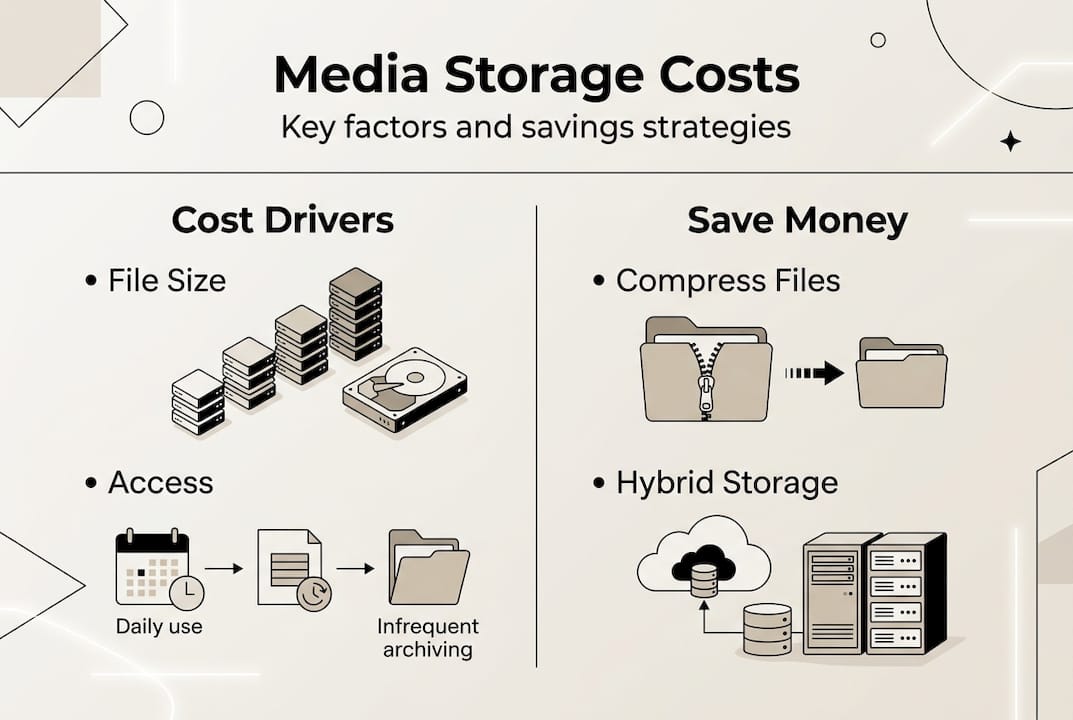
- Resolution and file size: 4K footage can be four to six times larger than 1080p. A single hour of 4K ProRes footage can exceed 200 GB. That adds up fast.
- Backup and redundancy: The 3-2-1 rule (three copies, two media types, one offsite) is smart practice, but it effectively triples your storage footprint.
- Versioning: Keeping multiple edited versions of the same project, rough cuts, color-graded exports, and client revisions, all consume space that rarely gets cleaned up.
- Access and retrieval fees: Cloud providers often charge extra when you download or move files, especially from archive or cold storage tiers.
- Retention without review: Files that sit untouched for years still cost money every month.
To put this in perspective, a content creator with 100 hours of 1080p footage might use around 3 TB. The same 100 hours in 4K could require 12 to 20 TB, and that is before backups. Cloud storage costs for video creators depend strongly on file size and access frequency, meaning a creator who regularly pulls 4K files from the cloud will pay far more than one who archives and rarely retrieves.
Pro Tip: Check whether your cloud provider charges egress fees before committing. Some services look cheap per GB but charge heavily when you download your own files.
For a broader look at which platforms offer the best value, comparing the best cloud storage options by use case can save you from locking into a plan that penalizes high-volume creators.
Local, external, and cloud: comparing your storage options
Every storage method has trade-offs. The right choice depends on your volume, budget, and how often you need to access your files.
| Storage option | Upfront cost | Monthly cost | Scalability | Best for |
|---|---|---|---|---|
| Internal hard drive | Low ($50 to $120) | $0 | Very limited | Small projects, archiving |
| External RAID/NAS | Medium ($300 to $800) | $5 to $15 (power) | Moderate | Studios, regular creators |
| Cloud (standard) | $0 | $100 to $150/5 TB | Unlimited | Teams, remote access |
| Cloud (archive) | $0 | $15 to $30/5 TB | Unlimited | Long-term cold storage |
Local drives win on upfront cost per GB and have no retrieval fees. The downside is physical risk: a flood, fire, or drive failure can wipe everything. External RAID systems add redundancy but require management and physical space.

Cloud storage offers flexibility and remote access, but as video storage costs explained notes, cloud services have unique cost structures and require different management approaches. Egress fees, tiered pricing, and minimum storage durations can make cloud more expensive than it appears.
Key trade-offs to weigh:
- Disaster recovery: Cloud wins by default; local requires an offsite backup strategy
- Collaboration: Cloud enables team access; local requires VPN or physical presence
- Long-term cost: Local is cheaper per GB over time; cloud scales without hardware investment
Pro Tip: A hybrid approach often delivers the best value. Keep active projects on local drives for fast access, and push completed projects to cloud archive tiers where retrieval costs are rare. For a step-by-step setup, see this cost-effective storage workflow guide.
How to estimate and reduce your media storage costs
Forecasting your storage bill does not require a spreadsheet degree. A simple formula gets you close: total file size (GB) x price per GB = base monthly cost. Add any bandwidth or egress fees on top.
Here is a step-by-step approach to estimating and controlling your costs:
- Audit your current storage: List every location where you store video files, local drives, cloud accounts, external backups, and note the total size.
- Calculate your growth rate: How many GB do you add per month? Multiply by 12 to get your annual growth.
- Apply your price per GB: Use your current provider's rate. For calculating storage costs accurately, include egress and retrieval fees.
- Identify waste: Look for duplicate files, unneeded versions, and footage you will never use again.
- Choose a reduction strategy: Compression, archiving, and deletion are your three levers.
Actionable ways to reduce costs right now:
- Compress files with modern codecs before uploading to cloud storage
- Delete rough cuts and unneeded exports once a project is delivered
- Move completed projects to archive-tier cloud storage automatically
- Set lifecycle rules in your cloud account to downgrade file tiers after 90 days
- Use video storage cost-saving tips to identify quick wins in your current setup
Compression is the single fastest win for most creators. Leveraging HEVC and other compression immediately reduces storage needs, often cutting file sizes by 50 to 70% with no visible quality loss.
For creators managing large libraries, pairing compression with smarter video management strategies and consistent storage management tips can cut annual storage bills by hundreds of dollars.
Smart workflows for ongoing video storage savings
One-time fixes only go so far. The creators and small businesses that consistently keep storage costs low do it through repeatable habits, not heroic clean-up sessions.
Benefits of an organized, automated storage workflow include predictable monthly costs, fewer emergency decisions about what to delete, and faster access to the files you actually need. When your library is structured, you spend less time searching and less money storing junk.
Best practices for building a cost-smart storage workflow:
- Use a consistent folder structure: Organize by project, date, and file type so nothing gets lost or duplicated
- Label files clearly on import: Descriptive names prevent you from keeping mystery files just in case
- Set cloud lifecycle rules: Automate the move from standard to archive storage after a set period of inactivity
- Schedule quarterly clean-ups: Review your library every three months and delete what you no longer need
- Compress before storing: Never upload raw footage to cloud without compressing first
- Audit backup copies: Confirm your backups are current, then delete outdated versions
Organized workflows prevent storage from ballooning via duplicate or obsolete files, which is one of the most common and invisible causes of runaway storage bills.
Pro Tip: Set a recurring calendar reminder every quarter to review your media library. Even a 30-minute session can identify gigabytes of files worth deleting or compressing, which translates directly to dollars saved each month.
For creators building out their systems, these storage strategies for creators provide a solid foundation for keeping costs in check as your library grows.
Why most creators overspend on storage: a hard-won lesson
Here is the uncomfortable truth: most storage overspending is not caused by high prices. It is caused by habits. Creators hoard footage they will never touch again, keep five versions of a project when one would do, and assume that buying more storage is the same thing as being organized. It is not.
There is also a persistent myth that more storage automatically equals more safety. In reality, a poorly labeled drive full of duplicate files is not a backup strategy. It is just expensive clutter.
What actually works is discipline combined with the right tools. Embracing HEVC compression, for example, can cut your storage footprint by up to 70% without any visible quality loss. That is not a marginal gain. That is the difference between paying for 10 TB and paying for 3 TB. Pair that with a cost-effective workflow insight and you are not just saving money this month. You are building a system that keeps costs low as your business grows.
The creators who spend the least on storage are not the ones with the cheapest plans. They are the ones who are ruthlessly intentional about what they keep and how they store it.
Cut your video storage costs with HEVCut tools
Now that you see what is possible, here is where to get hands-on and start saving on your own projects. HEVCut is built specifically for creators and small businesses who need to shrink video file sizes without losing the quality their clients expect.

Start with the free video size calculator to see exactly how much space you could recover by compressing your current library with HEVC technology. You can also explore the full suite of guides, workflow templates, and compression tools at HEVCut to build a storage strategy that fits your budget and your content pipeline. No guesswork, no surprise bills.
Frequently asked questions
What factors most impact media storage costs for small businesses?
Main factors include file size, resolution, storage method, frequency of access, and how often you back up or archive your files. Cloud storage costs depend strongly on file size and access frequency, making these two variables the most important to control.
Is cloud or local storage cheaper for video content?
Cloud offers flexibility and scalability, but for large ongoing storage, local drives are often cheaper long-term. Cloud services have unique cost structures that can make them more expensive than they appear at first glance.
How can I calculate my video storage costs quickly?
Multiply your total file size by your storage provider's price per GB, then add any fees for access or bandwidth. A detailed breakdown of how to calculate storage costs using size and price per GB can help you build a more accurate annual forecast.
What's the best way to save money on high-resolution video storage?
Compress files with modern codecs, regularly clean up old or duplicate files, and automate archiving to less costly tiers. Leveraging HEVC compression immediately reduces storage needs, often cutting file sizes by 50 to 70%.
How often should creators review and optimize storage workflows?
Quarterly reviews keep costs in check and prevent unnecessary build-up of redundant or obsolete files. Organized workflows are the most reliable way to prevent storage from ballooning over time.
Recommended
- Top storage management tips for video creators: save space & costs
- Cost-saving tips for video storage maintaining quality
- Cost-saving storage strategies for video creators 2026
- 5 proven ways to save on cloud storage for video creators
- Opslag Voor Video Projecten: Praktische Gids Voor Editors, Producers En Studios - https://i4studio.nl/