
Managing 4K video files presents a real challenge for creators juggling massive file sizes that quickly consume storage space and drive up costs. A single hour of 4K footage can occupy anywhere from 45GB to over 150GB depending on your codec and bitrate settings. This guide walks you through practical strategies to store your 4K videos efficiently, from choosing the right compression codec and hardware setup to implementing bulletproof backup systems. You'll learn how to cut storage costs dramatically while maintaining the visual quality your audience expects, plus discover verification methods to ensure your files remain safe and accessible long term.
Table of Contents
- Key Takeaways
- Understanding storage requirements for 4K videos
- Preparing your storage setup: hardware and organization
- Step by step guide to storing and backing up your 4K videos
- Troubleshooting common mistakes and verifying your storage setup
- Explore HEVCut's tools to optimize your 4K video storage
- FAQ
Key Takeaways
| Point | Details |
|---|---|
| 4K storage needs | Understanding how codecs, bitrate, and encoding settings affect file sizes helps you plan capacity for long term storage. |
| HEVC gains | HEVC compression can reduce 4K file sizes by about half compared with older codecs while maintaining visual quality. |
| NAS plus cloud backups | A NAS provides centralized access with potential RAID protection while cloud backups add offsite safety for disaster recovery. |
| File management basics | Effective file organization and a regular backup routine prevent data loss and simplify workflow management. |
Understanding storage requirements for 4K videos
The foundation of efficient 4K video storage starts with understanding exactly what you're dealing with. File sizes vary wildly based on codec choice, bitrate, and recording settings. A 4K video shot at 60fps with H.264 codec can easily hit 150GB per hour, while the same footage encoded with HEVC might land closer to 75GB.
Codec selection makes the biggest difference in your storage equation. HEVC (H.265) compression can reduce 4K video file size by up to 50% compared to older codecs while preserving quality. The newer AV1 codec promises even better compression ratios, but hardware support remains limited in 2026. Most professional workflows still rely on HEVC for its balance of compression efficiency and widespread compatibility.
Common container formats like MP4 and MOV wrap these codecs differently. MP4 offers broader compatibility across devices and platforms, while MOV provides more flexibility for professional editing workflows. Your choice here affects not just storage size but also how smoothly you can work with files across different systems.
Typical 4K video file sizes by codec:
| Codec | Bitrate | File Size (1 hour) | Quality Level |
|---|---|---|---|
| H.264 | 100 Mbps | 45GB | Good |
| H.264 | 200 Mbps | 90GB | Excellent |
| HEVC | 50 Mbps | 22GB | Good |
| HEVC | 100 Mbps | 45GB | Excellent |
| ProRes 422 | 500 Mbps | 220GB | Professional |
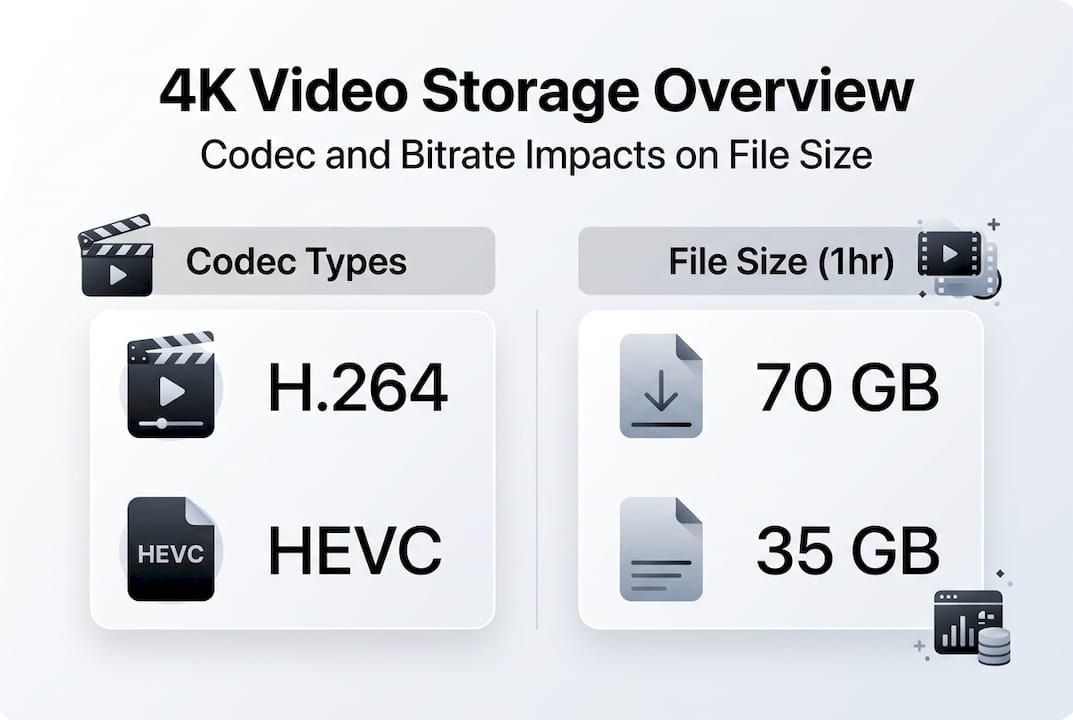
Bitrate directly impacts both quality and file size. Higher bitrates preserve more detail but demand more storage space. For archival purposes, you can often reduce bitrate during encoding without noticeable quality loss, especially when using efficient codecs like HEVC. Understanding video compression optimization helps you find the sweet spot between quality and storage efficiency.
Pro Tip: Choose HEVC encoding for long term storage to cut costs and space significantly. The initial encoding time pays off through dramatically reduced storage requirements and faster backup transfers.
Preparing your storage setup: hardware and organization
Selecting the right storage hardware sets the stage for smooth 4K video management. You need to balance speed, capacity, and budget across several options. SSDs deliver blazing fast read and write speeds perfect for active projects, but cost more per gigabyte. Traditional HDDs offer massive capacity at lower prices, ideal for archival storage where speed matters less.
External drives provide portable flexibility for solo creators. Look for USB 3.2 or Thunderbolt connections to handle 4K transfer speeds without bottlenecks. For team environments or professional workflows, network attached storage (NAS) solutions can greatly improve accessibility and performance in professional 4K video workflows.
Storage hardware comparison:
- Internal SSD: Fastest performance, limited capacity, higher cost per GB
- Internal HDD: Large capacity, slower speeds, affordable for bulk storage
- External SSD: Portable speed, moderate capacity, good for active projects
- External HDD: Maximum capacity, adequate speed, best value for archives
- NAS system: Centralized access, RAID protection, scales with team needs
RAID arrays within NAS systems provide data redundancy that protects against drive failures. RAID 1 mirrors data across two drives, while RAID 5 spreads data across multiple drives with parity information. This redundancy costs storage capacity but prevents catastrophic data loss when individual drives fail.

File organization matters as much as hardware choice. Create a clear folder structure that reflects your workflow. Many creators organize by project, then date, then content type. Consistent naming conventions help you locate files quickly. Include project codes, dates in YYYYMMDD format, and descriptive tags in filenames.
Pro Tip: Invest in a NAS if you require multi user access and performance. The upfront cost pays off through improved collaboration, automatic backups, and protection against hardware failures.
Consider video file management tips that include metadata tagging. Software tools can catalog your videos with searchable tags, making retrieval instant even across thousands of files. This organizational groundwork becomes invaluable as your library grows. Following a storage saving guide for video creators ensures you build sustainable habits from the start.
Step by step guide to storing and backing up your 4K videos
Implementing a systematic approach to storage and backup protects your work while optimizing costs. This workflow combines compression, secure transfer, and redundant backup strategies that professional creators rely on.
Step 1: Compress videos using HEVC codec before storage
Start by encoding your finished projects with HEVC compression. This single step typically cuts file sizes in half compared to H.264 while maintaining visual quality. Use quality focused presets rather than size focused ones to preserve detail. Most encoding software offers HEVC options with adjustable quality sliders. Aim for constant quality mode (CQ) between 20 and 24 for excellent results.
Step 2: Transfer videos to primary storage with verified file integrity
Move compressed files to your primary storage location using reliable transfer methods. Enable file verification during transfer to catch corruption immediately. Many transfer utilities calculate checksums to confirm files arrive intact. Never delete source files until you've verified the transferred copies play correctly.
Step 3: Implement a 3 2 1 backup strategy
The 3 2 1 backup strategy significantly reduces the risk of data loss in 4K video projects. Keep three total copies of your data, store them on two different media types, and maintain one copy offsite. This protects against hardware failure, theft, fire, and other disasters.
Backup location comparison:
| Location Type | Pros | Cons | Best For |
|---|---|---|---|
| Local NAS | Fast access, full control | Requires maintenance | Primary working storage |
| External HDD | Portable, affordable | Physical vulnerability | Secondary local backup |
| Cloud Storage | Offsite protection, accessible anywhere | Ongoing costs, slower transfers | Offsite backup |
Step 4: Schedule regular backups and audits
Automate your backup process to eliminate human error. Set up scheduled syncs that run during off hours. Most NAS systems and backup software support automated scheduling. Review backup logs weekly to catch failures early. Test restore procedures quarterly to confirm backups actually work when you need them.
Pro Tip: Automate backups to prevent human errors and data loss. Manual backup processes inevitably get skipped during busy periods, leaving gaps in your protection.
Consider advanced video compression techniques for archival projects you access rarely. You can apply more aggressive compression to older content, then keep higher quality versions of active projects. This tiered approach balances quality with saving storage costs with compression over time.
Troubleshooting common mistakes and verifying your storage setup
Even well planned storage systems encounter problems. Recognizing issues early and knowing how to fix them prevents minor glitches from becoming data disasters. Common problems include corrupted files during transfer, incomplete backups that skip changed files, and compression settings that degrade quality more than expected.
Watch for warning signs that indicate storage problems. Playback errors, missing thumbnails, or files that won't open suggest corruption. Backup software reporting failures or skipped files means your protection has gaps. Unusual drive noises or slow performance often precede hardware failures.
Verification methods to ensure data integrity:
- Run checksum comparisons between original and backed up files
- Perform test restores monthly to confirm backup functionality
- Monitor drive health with SMART diagnostic tools
- Review backup logs for errors or incomplete transfers
- Spot check random files by opening and playing them fully
Environmental factors affect storage longevity more than most creators realize. Keep drives in temperature controlled spaces between 60 and 75 degrees Fahrenheit. Excessive heat accelerates drive degradation and increases failure rates. Humidity should stay between 30 and 50 percent to prevent condensation and corrosion.
Regular verification of backup integrity prevents costly surprises in video production workflows. Schedule verification tasks just like you schedule backups. Many backup solutions include built in verification features that automatically check file integrity after each backup completes.
"The only backup strategy that matters is the one that successfully restores your data when disaster strikes. Test your restores regularly, because untested backups are just expensive hopes."
Pro Tip: Document your storage setup and backup schedules for accountability. Write down what gets backed up, when, and where. Include hardware details, software versions, and configuration settings. This documentation becomes invaluable when troubleshooting problems or training team members.
Understanding video storage cost strategies helps you optimize spending without sacrificing protection. Calculate your total cost of ownership including hardware, cloud subscriptions, and electricity. Sometimes spending more upfront on quality hardware reduces long term costs through better reliability and lower failure rates.
Explore HEVCut's tools to optimize your 4K video storage
Putting these storage strategies into practice becomes simpler with the right tools. HEVCut specializes in helping video creators manage storage efficiently through advanced compression technology. The platform's video file size calculator lets you estimate storage needs before committing to hardware purchases, helping you plan capacity accurately.

HEVCut's compression tools apply HEVC encoding with quality presets optimized for different use cases. Whether you need maximum compression for archival storage or balanced settings for active projects, the platform guides you toward optimal results. The automated processing handles technical complexity while giving you control over quality tradeoffs. Visit HEVCut to explore how modern compression technology can cut your storage costs by up to 70 percent without sacrificing the visual quality your audience expects.
FAQ
How much storage do I need for 1 hour of 4K video?
Typical 1 hour 4K video ranges from 45GB to 150GB depending on codec and bitrate. H.264 at high bitrates can reach 150GB per hour, while HEVC compression can halve file size compared to H.264 at similar quality levels. Your actual needs depend on shooting frame rate, color depth, and intended use. Professional workflows often start with larger files then compress for delivery and archival storage.
What is the best method to back up large 4K video files?
The 3 2 1 backup strategy combining local NAS, external drive, and cloud storage is recommended for comprehensive protection. This approach keeps three copies on two media types with one offsite, protecting against hardware failure and disasters. Automated backups reduce risk of human error and ensure consistency. Schedule regular verification tests to confirm your backups actually work when needed.
Can cloud storage replace local storage for 4K videos?
Cloud storage is great for offsite backup and remote access but can be costly for large volumes of 4K content. Upload and download speeds limit practicality for active projects requiring frequent access. Local storage provides faster access and better control but requires physical management and protection. Most professional workflows combine both, using local storage for active projects and cloud for archival backup.
How does codec choice affect storage needs for 4K videos?
HEVC codec reduces file sizes roughly 50 percent compared to H.264 at similar quality levels. Choosing efficient codecs significantly lowers storage costs over time, especially for large video libraries. Newer codecs like AV1 promise even better compression but have limited hardware support in 2026. Balance compression efficiency with compatibility needs for your specific workflow and delivery platforms.