
Losing months of video content to a hard drive crash or accidental deletion is every creator's nightmare. Whether you're managing client projects or building your personal brand, your video files represent hours of work and significant investment. This guide walks you through proven backup strategies that protect your content without breaking the bank, from choosing the right storage solutions to implementing automated workflows that keep your files safe in 2026.
Table of Contents
- Understanding the 3-2-1 backup strategy for video files
- Choosing the right storage solutions: external drives, NAS, and cloud
- Setting up an efficient backup workflow for video files
- Common backup challenges and how to avoid them
- Explore HEVCut's tools to optimize your video storage
Key takeaways
| Point | Details |
|---|---|
| Follow the 3-2-1 rule | Keep three copies of your data on two different media types with one stored offsite for maximum protection. |
| Balance local and cloud storage | External drives and NAS offer affordable local backups while cloud provides disaster recovery. |
| Automate your workflow | Set up scheduled backups and regular testing to ensure your data stays protected without manual effort. |
| Replace aging hardware | Hard drives fail over time, so proactively refresh your backup media every 3-5 years. |
| Verify backup integrity | Test file restoration regularly to confirm your backups actually work when you need them. |
Understanding the 3-2-1 backup strategy for video files
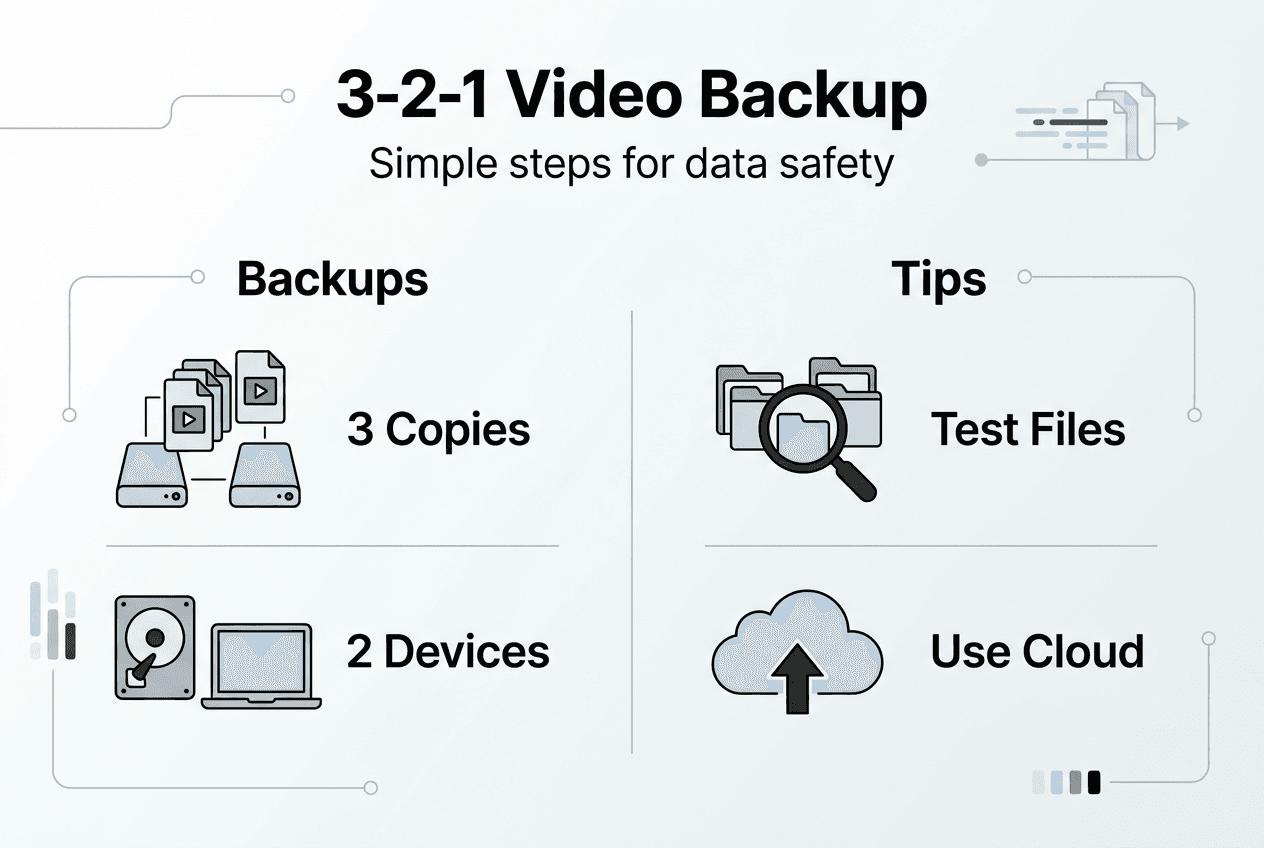
The 3-2-1 backup strategy is a widely recommended backup approach, advocating for three copies of data: two local and one offsite. This simple framework provides multiple layers of protection against the most common causes of data loss. For video creators working with large 4K files and hours of footage, this strategy becomes essential rather than optional.
The three copies include your working files plus two backups. Two different media types might mean an external hard drive and a NAS device, or an external drive and cloud storage. This diversity protects you if one storage technology fails. The offsite component guards against location-specific disasters like fire, theft, or flooding that could destroy everything in your studio.
Here's why this matters specifically for video files:
- High-resolution footage represents irreplaceable content worth thousands in production costs
- Single drive failures are common, with mechanical drives averaging 3-5 year lifespans
- Video files are too large to quickly recreate or re-download from original sources
- Client work often requires maintaining archives for months or years after delivery
The 3-2-1 backup rule mitigates risks associated with hardware failures, location-specific disasters, and media vulnerabilities. Many creators make the mistake of keeping all backups in one location or relying solely on their computer's internal drive plus one external backup. If your studio floods or experiences a power surge, both copies could be destroyed simultaneously.
Pro Tip: Label each backup clearly with dates and contents. When disaster strikes, you need to identify the right backup instantly without guessing which drive contains what footage.
Local copies provide quick access when you need to restore a file or reference old footage. Offsite copies ensure business continuity even if your entire workspace becomes inaccessible. Implementing video file management tips alongside this backup strategy creates a complete data protection system.
"The cost of implementing proper backups is always less than the cost of recreating lost work or losing a client relationship due to data loss."
Choosing the right storage solutions: external drives, NAS, and cloud
Selecting backup storage involves balancing cost, reliability, and accessibility. Each option serves different needs in your overall backup strategy. Understanding these tradeoffs helps you build a system that protects your work without unnecessary expense.
External hard drives remain the most accessible entry point for video backups. External hard drives are common and cost-effective local backup solutions but require manual management. You can purchase 4TB drives for under $100, making them affordable for multiple backup copies. They offer fast transfer speeds via USB 3.1 or Thunderbolt connections, crucial when backing up hundreds of gigabytes. However, they require manual connection and copying, which introduces the risk of forgetting to back up regularly.
Network Attached Storage (NAS) devices provide enterprise-level backup capabilities at prosumer prices. NAS devices offer robust, redundant storage at lower long-term cost than cloud storage for large data amounts. A two-bay NAS with 8TB of RAID 1 storage costs around $400-600 initially but provides automatic, redundant backups accessible from any device on your network. The RAID configuration means one drive can fail without losing data, and you simply replace it to restore redundancy.

Cloud storage solves the offsite requirement elegantly but comes with ongoing costs. Services like Backblaze, Google Drive, or Dropbox provide automatic syncing and geographic redundancy. You can access files from anywhere with internet, making cloud ideal for remote work. However, uploading terabytes of video can take days or weeks on typical home internet connections, and monthly fees accumulate quickly for large libraries.
| Storage Type | Initial Cost | Monthly Cost | Redundancy | Speed | Best For | | --- | --- | --- | --- | --- | | External HDD | $80-150 (4TB) | $0 | None | Fast | Primary local backup | | NAS (2-bay) | $400-600 | $0 | RAID options | Very Fast | Automated local backup | | Cloud Storage | $0-50 | $10-50 (2TB) | Built-in | Slow upload | Offsite protection | | External SSD | $300-500 (4TB) | $0 | None | Fastest | Active project backup |
Consider storage lifespan when planning. Hard drives typically last 3-5 years with regular use, while SSDs can last longer but cost significantly more per terabyte. Building a cost-effective video storage workflow means replacing drives proactively before they fail rather than after losing data.
Pro Tip: Buy external drives in pairs from different manufacturers or production batches. Drives from the same batch often fail around the same time, defeating redundancy if both your backups use identical drives purchased together.
Your backup strategy should combine at least two of these options. A common setup pairs an external drive for daily backups with cloud storage for offsite protection, or uses a NAS for local redundancy plus an external drive stored at another location. Implementing comprehensive video file management tips ensures your chosen storage works efficiently within your overall workflow.
Setting up an efficient backup workflow for video files
Creating a reliable backup routine removes the guesswork and human error that leads to data loss. Your workflow should make backups automatic, regular, and verifiable without requiring constant attention.
Start by establishing a backup schedule based on your production volume. Active creators shooting daily should back up every evening. Those working on weekly projects can schedule backups every few days. Regular backup schedules ensure the latest video versions are safely stored. The key is consistency, making backups a non-negotiable part of wrapping up each work session.
Follow these steps to build your workflow:
- Designate primary storage where you actively work on projects, typically your computer's internal SSD for current projects.
- Set up automated local backup to an external drive or NAS that runs nightly, copying new and modified files automatically.
- Configure weekly or monthly cloud backup for completed projects, uploading finished work to offsite storage.
- Create a monthly routine to copy critical projects to a second external drive stored at a different location.
- Schedule quarterly backup tests where you restore random files to verify everything works correctly.
Automation eliminates the biggest failure point in any backup system: forgetting to do it. Mac users can leverage Time Machine for automatic hourly backups to external drives. Windows offers File History for similar functionality. NAS devices include backup software that can pull files from your computer on schedule. Cloud services like Backblaze run continuously in the background, uploading changed files automatically.
Test backups regularly by restoring files to verify their integrity. Many people discover their backups failed only when they desperately need to restore something. Monthly restoration tests catch problems early. Try restoring a random video file from each backup location and verify it plays correctly without corruption.
Pro Tip: Keep a backup log noting what was backed up and when. A simple spreadsheet tracking backup dates for each storage location helps you spot gaps in your routine before they become disasters.
Your offsite backup is critical for disaster protection. This could be cloud storage, an external drive at a family member's house, or a safe deposit box. Update it monthly for completed projects. The goal is protecting finished work, not necessarily every working file. Applying video compression best practices before archiving reduces the storage space and time needed for these offsite backups.
"Backups you never test are just expensive decorations. The only backup that matters is one you've successfully restored from."
Consider implementing a storage saving guide for video creators to reduce the total volume you need to back up. Smaller file sizes mean faster backups, lower cloud costs, and more content fitting on each drive. This efficiency compounds across your entire backup system.
Common backup challenges and how to avoid them
Even well-intentioned backup plans fail due to predictable problems. Understanding these pitfalls helps you design a system that actually protects your work when you need it.
Hard drive failure rates increase with age, making redundancy essential. Mechanical drives experience wear on moving parts, with failure rates climbing sharply after three years of regular use. Many creators keep using the same backup drives for five or more years, unknowingly relying on hardware past its reliable lifespan. Set calendar reminders to evaluate and replace backup drives every three years, before they fail.
Relying on a single backup copy creates a false sense of security. One backup means you have two total copies of your data, but if that backup fails or becomes corrupted, you're back to a single point of failure. The 3-2-1 rule exists because multiple independent copies dramatically reduce the probability of total loss. Each additional backup copy provides exponentially better protection.
Skipping backup verification is perhaps the most dangerous mistake. Backups can fail silently, appearing to complete successfully while actually writing corrupted data or skipping files. Without testing restoration, you won't discover the problem until you desperately need those files. Schedule monthly spot checks where you restore random files from each backup location.
Cloud storage costs can spiral out of control with large video libraries. A 2TB plan costs $10-20 monthly, but serious creators quickly exceed that with 4K footage. Monitor your cloud usage and consider hybrid approaches where only critical completed projects go to cloud while works in progress stay on local backups. Understanding video storage cost strategies helps balance protection with budget constraints.
Common backup mistakes to avoid:
- Keeping all backups in the same physical location vulnerable to single disasters
- Using the same brand and model for all backup drives, risking simultaneous failures
- Failing to label drives clearly, leading to confusion about which backup is current
- Ignoring backup software error messages that indicate failed or incomplete backups
- Storing backup drives improperly in hot, humid, or magnetically risky environments
| Challenge | Risk Level | Prevention Strategy | Cost Impact |
|---|---|---|---|
| Aging drives | High | Replace every 3 years | $100-200 per drive |
| Single backup only | Critical | Implement 3-2-1 rule | $200-400 initial |
| Unverified backups | High | Monthly restoration tests | Time investment only |
| Cloud cost overruns | Medium | Hybrid local/cloud approach | Saves $20-100 monthly |
| Poor organization | Medium | Label drives and maintain logs | Time investment only |
Another subtle problem is backup complacency. After setting up a system that works for six months, creators often stop monitoring it. Drives fill up, software updates break automation, or subscriptions lapse. Schedule quarterly reviews of your entire backup system to catch these issues before they compromise your protection.
Explore HEVCut's tools to optimize your video storage
Reducing file sizes makes every aspect of video backup faster, cheaper, and more reliable. Smaller files upload to cloud storage quicker, fit more content on each backup drive, and reduce the total storage investment needed to protect your work.
HEVCut's video compressor tool helps you shrink video files by up to 70% using advanced HEVC compression without visible quality loss. This dramatic reduction means your backup drives hold three times more content, and cloud uploads finish in a third of the time. For creators managing terabytes of footage, this efficiency translates directly to cost savings.

The storage savings calculator shows exactly how much space you'll save across your entire video library. Input your current storage usage and see projected savings after compression, helping you plan backup capacity accurately. The video file size calculator estimates storage needs for future projects, ensuring you purchase adequate backup capacity from the start. These tools integrate seamlessly with the backup workflows covered in this guide, making your entire storage strategy more efficient and affordable.
How often should I back up my video files?
How often should I back up my video files?
Backup frequency depends on how much new content you create and how much work you can afford to lose. If you shoot daily, back up every evening so you never risk more than one day's work. Weekly creators can back up after each project wraps. At minimum, back up whenever you complete work you couldn't easily recreate.
Can I use only cloud storage for backing up videos?
Cloud-only backup is risky despite its convenience. Internet outages, account issues, or service disruptions could leave you unable to access critical files when deadlines loom. Cloud also provides slow access for large files compared to local drives. Use cloud as your offsite backup component while maintaining local copies for daily access and redundancy.
What are the best external hard drives for video backups?
WD Elements, Seagate Backup Plus, and Samsung T7 SSD consistently rank among the most reliable options for video creators. Choose drives with at least 2TB capacity, preferably 4TB or larger for 4K workflows. Prioritize drives with good warranty coverage and proven reliability over the absolute cheapest options, as your data's value far exceeds the price difference.
How do I verify that my backups are working?
Restore sample files monthly from each backup location and verify they open and play correctly. Choose random files rather than the same test file each time to ensure comprehensive coverage. Keep a log of these tests noting the date, which backup you tested, and whether restoration succeeded. This documentation helps identify patterns if problems emerge.
Should I use RAID for video backup?
RAID provides excellent redundancy for your primary working storage or local backup, but don't mistake it for a complete backup solution. RAID protects against drive failure but not deletion, corruption, theft, or disaster. Use RAID in your NAS for local backup redundancy, then maintain separate offsite backups following the 3-2-1 rule for complete protection.
When should I replace my backup drives?
Replace backup drives every three to five years regardless of whether they show problems. Mechanical hard drives experience increasing failure rates after three years of regular use. Set calendar reminders when purchasing drives to evaluate them at the three-year mark. If a drive shows any signs of problems like unusual noises, slow performance, or errors, replace it immediately rather than waiting for complete failure.